Overview
The Manage Forms grid is the central hub for all Custom Forms in your PCR-360 system. From here, users with the Form Builder permission can create new forms, open existing forms for editing, and manage menu links.
Navigating to Manage Forms
From the PCR-360 left navigation menu, go to Lighthouse → Form Builder → Manage Forms.
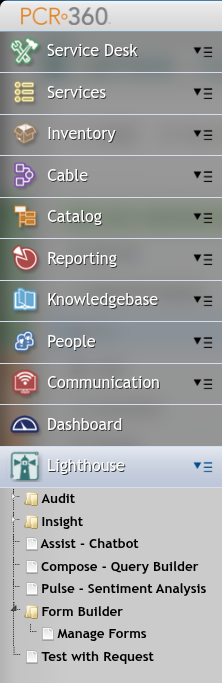
The Manage Forms Grid
The grid displays all forms available in the system. Each row represents one form and shows:
-
Form Name — the display name of the form
-
Form Key — the unique internal identifier
-
Version — the current version number
-
Status — whether the current version is Published or Draft
Use the search bar at the top to filter forms by name or key.

Creating a New Form
Click the Add button in the grid toolbar to create a new form. This opens the Edit Form page with a blank canvas where you can begin building.
Opening an Existing Form
Click any row in the grid to open that form in the Edit Form editor. If the form has a Published version, it opens in read-only mode with a prompt to create a draft if you need to make changes.
Adding Menu Links from the Grid
The grid's Settings menu (gear icon in the toolbar) provides options to manage menu links for the selected form:
-
Add Form to Menu — adds a direct link to open the selected form in a chosen Lighthouse menu folder
-
Add Submissions to Menu — adds a link to the form's Ad Hoc submissions grid in a chosen menu folder
These same options are also available from within the Edit Form page under Settings ▼.