Overview
Custom Forms can be made available in the PCR-360 CustomerCenter (CC) portal, allowing CC users to fill out and submit forms without having full PCR-360 access. When combined with the Create CC Request on Submit option, form submissions automatically generate Service Desk requests.
Enabling a Form for CustomerCenter
To make a form available in the CC portal:
-
Open the form in the Edit Form editor.
-
In the left sidebar, go to Basic Info.
-
Check Available in CustomerCenter.
-
Optionally, check Create CC Request on Submit to auto-generate a Service Request on submission.
-
Save and publish the form.
-
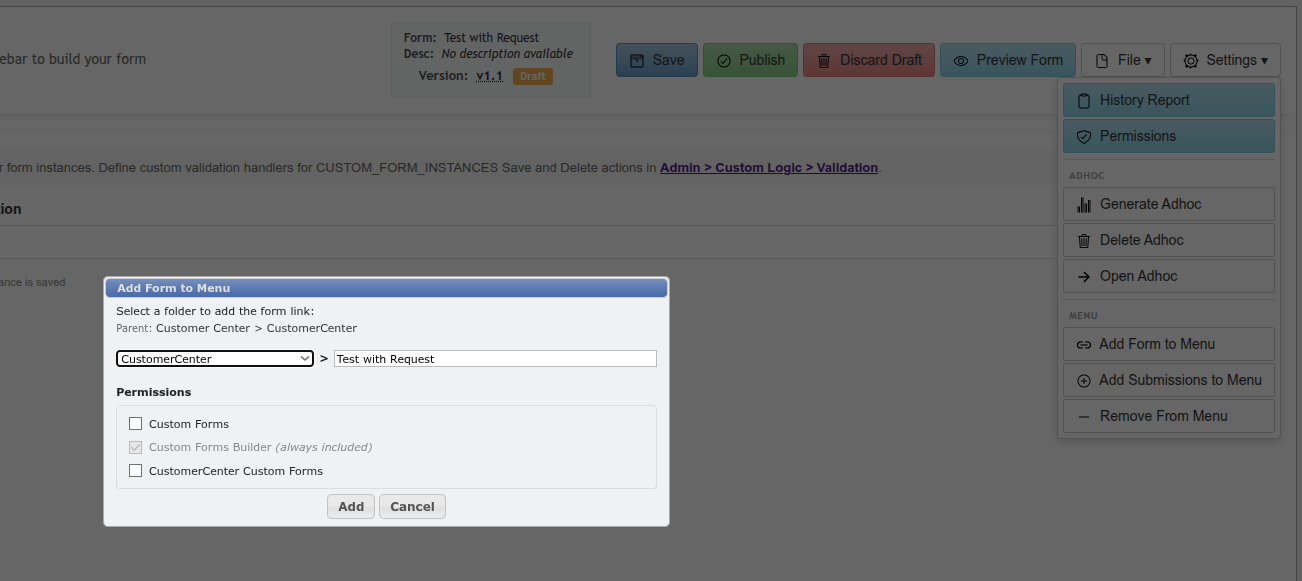
Use Settings ▼ → Add Form to Menu to add a link to the form in a CC menu folder so CC users can find it.
The CC Form Experience
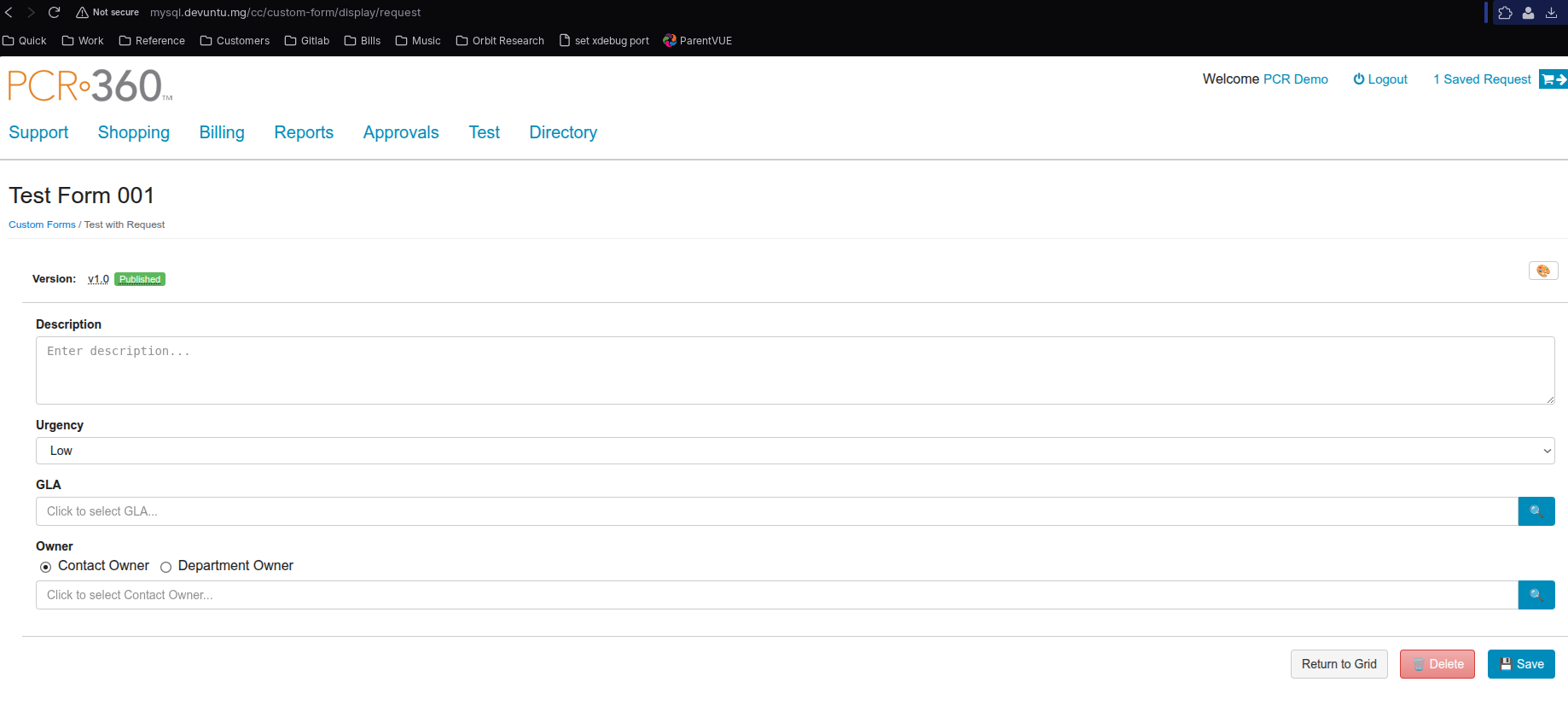
When a CC user clicks the form link in the CustomerCenter portal, they see a clean form view — without the PCR-360 navigation chrome — showing only the form fields. The form behaves identically to the internal Lighthouse form view.
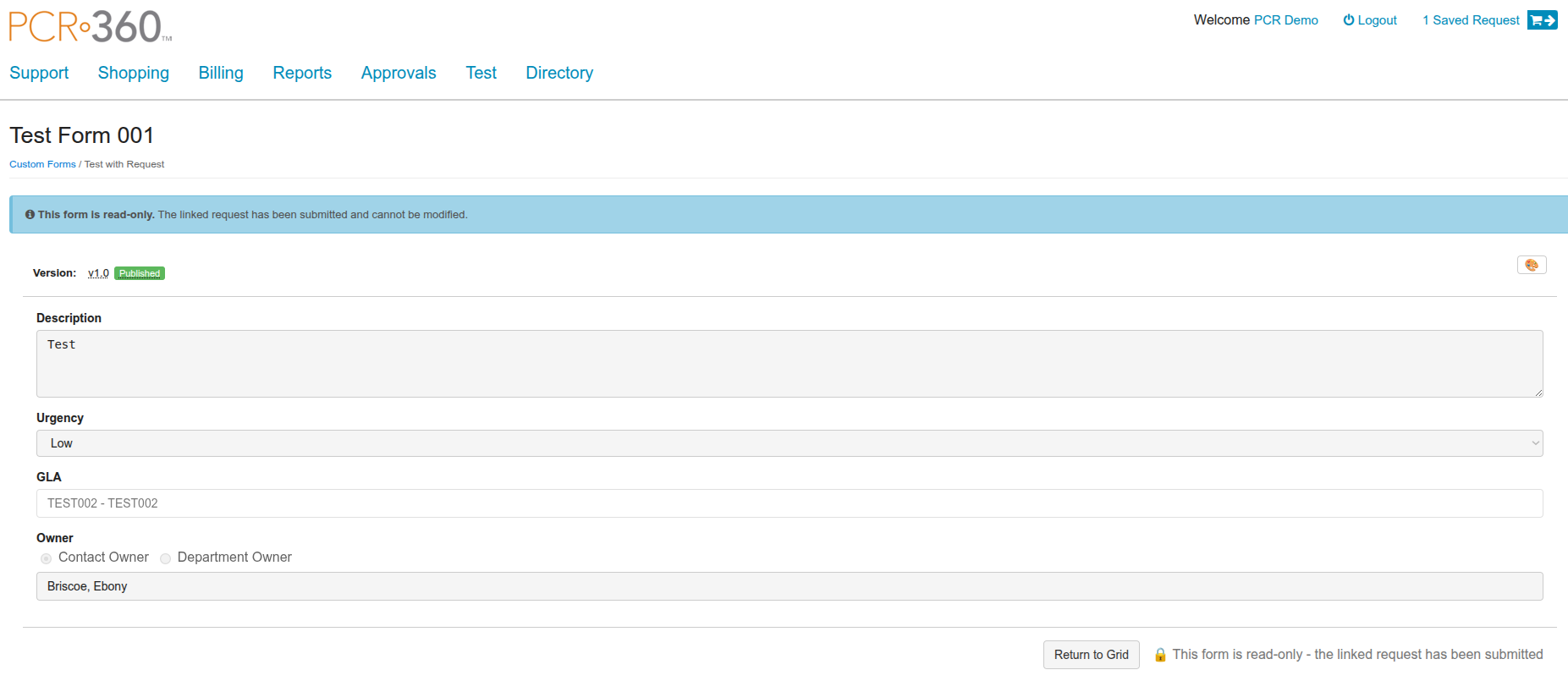
Automatic Request Creation
When Create CC Request on Submit is enabled and a CC user submits the form:
-
A new CustomerCenter Service Request (SD Number) is created automatically.
-
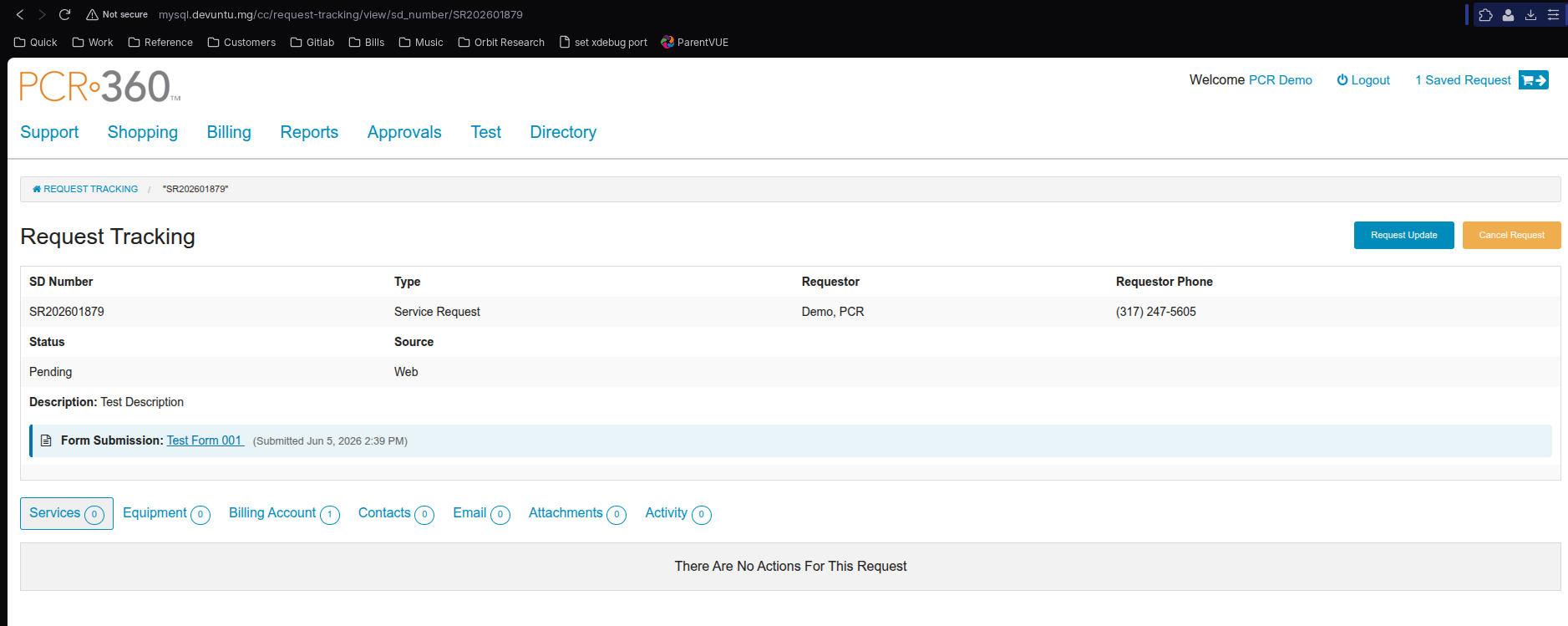
The form submission is linked to the request under Request Tracking, labeled as "Form Submission: [Form Name]" with the submitted date.
-
Request field values (Description, Urgency, GLA, Owner) are populated from the form's Request Field Mappings configuration.
CC users can view their submitted request in Request Tracking and see the linked form submission data.
Viewing CC Form Submissions (Admin)
Administrators can view all CC form submissions — along with internal submissions — in the form's generated Ad Hoc Grid. Navigate to the grid via Settings ▼ → Open Adhoc or the menu shortcut added via Settings ▼ → Add Submissions to Menu.
CC Menu Management
|
Action |
How |
|---|---|
|
Add form link to CC menu |
Edit Form → Settings ▼ → Add Form to Menu → select a CC menu folder |
|
Add submissions link to CC menu |
Edit Form → Settings ▼ → Add Submissions to Menu → select a CC menu folder |
|
Remove a CC menu link |
Edit Form → Settings ▼ → Remove from Menu |
The CC menu folder structure is managed under Admin → CustomerCenter Administration. You must create or identify the target folder before adding form links.