Overview
When a user opens a published Custom Form, they see the end-user form view. This page describes what users experience when filling out and submitting a form from within PCR-360 (Lighthouse).
Opening a Form
Users can open a form in several ways:
-
Clicking a custom menu link added to a Lighthouse menu folder (via Settings → Add Form to Menu)
-
Clicking Add in the form's Ad Hoc submissions grid
-
Clicking Preview Form in the Edit Form editor (builder preview only)
The Form View
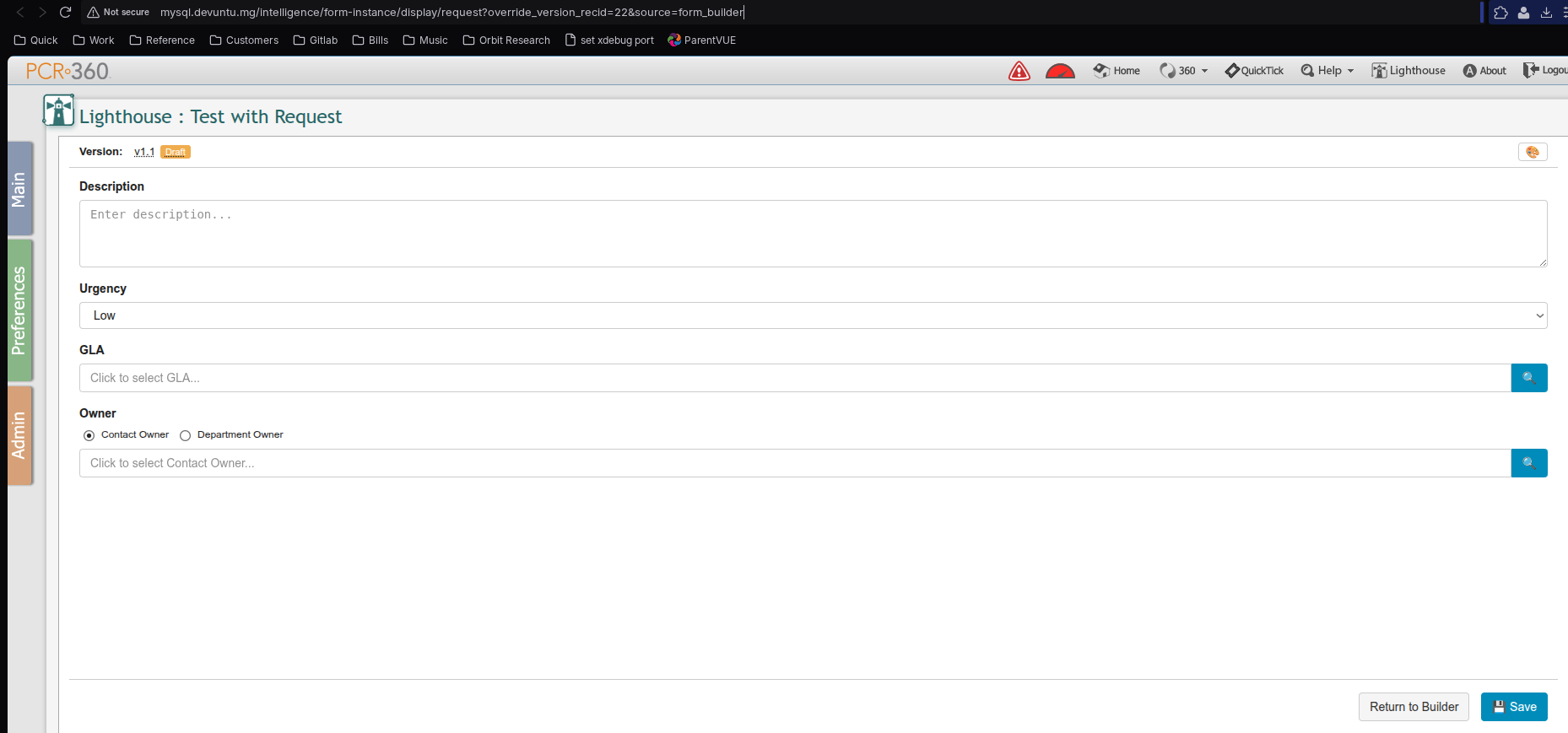
The form view displays:
-
Form title — the form's display name shown at the top
-
Version badge — shows the current version (e.g., v1.0) and status ( Published or Draft )
-
Form fields — rendered exactly as designed in the form builder
[Screenshot: Screenshot from 2026-07-06 13-48-23.png — form view with fields filled in]
Submitting a Form
-
Fill in the form fields as required.
-
Click the Save button at the bottom-right of the form.
-
The submission is saved. If the form is configured with Create CC Request on Submit, a CustomerCenter Service Request is automatically created and linked to this submission.
Form Actions
|
Button |
Description |
|---|---|
|
Save |
Submits and saves the form entry. |
|
Delete |
Removes the current saved submission. Only visible to users with delete permission. |
|
Return to Grid |
Navigates back to the Ad Hoc submissions grid without saving. Appears when the form was opened from the grid. |
|
Return to Builder |
Returns to the Edit Form editor. Appears only when the form was opened via Preview Form. |
Draft vs. Published
Users can access Draft forms via direct URL, but only Published forms are intended for general use. Always publish a form before distributing its link.
Linked Service Request
If the form has Create CC Request on Submit enabled, saving the form creates a CustomerCenter Service Request. The resulting request includes a Form Submission link in Request Tracking showing the submitted form data. See CustomerCenter Forms for more details.