
Create an Order
The first step is to create a Service Desk Order.
-
Go to Main > Service Desk > Orders.
2. Click the Unknown Attachment button.
3. Enter the Service Rep (if not populated with the User's name) into the field.
Unknown Attachment
4. Enter the Owner of the new Service into the picker.
Unknown Attachment
5. If so desired, enter the Requestor's name into the picker.
Unknown Attachment.
6. Next enter a brief Description into the field
Unknown Attachment
7. Click the Unknown Attachment button and an Order number will be generated in the upper left hand corner of the window.
Adding an Action
Next, add a Service Desk Order Action.
-
Click the Unknown Attachment button.
2. Set the Action to the Change Type of Owner in the drop-down.
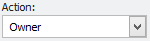
3. Select the Service for the Order with the picker.
Unknown Attachment
Ways to search for Services:
-
If the Service in question is known, enter it into the Service ID field and hit enter.
2. Part of the Service ID can be entered into the picker.
Unknown Attachment
3. Hit Enter
4. The picker in the Service field will trigger a form to help select the appropriate Service
Unknown Attachment
5. Filters can be added to the columns to shorten the list
Unknown Attachment
After Selecting a Service:
-
Select a New Owner for the Service
Unknown Attachment
The new Owner may be either a Contact or Dept. Hierarchy. It does not matter if the old Owner was a Contact or a Department.
2. Click the Unknown Attachment button.
3. If there are any matching SDC's (Service Desk Classification ) the User will see this screen and have the choice of choosing the appropriate SDC, saving without an SDC, or not saving the Action.
Unknown Attachment
4. If saved (with or without an SDC) an Action number will be generated next to the SD#.
Entering Workflow
At this point, if the Workflow (WF) is not populated from the Service Desk Classification it can be entered here.
-
Click on the Unknown Attachment tab.
2. Click the Unknown Attachment button.
3. The Workflow Number is a Required field. Enter a 'Workflow Number' into the field.
Unknown Attachment
See Note below for additional information.
4. The Workgroup is a Required field. Enter the Workgroup into the picker.
Unknown Attachment
5. If assigning this to a specific person, enter/select the Worker into the picker.
Unknown Attachment
6. If this WF item is ready to be worked, enter a Start Date into the field.
Unknown Attachment
Optionally, choose a Scheduled Date, and/or enter an Estimated Time to complete the Workflow.
7. Click the Unknown Attachment button.
Note: A couple of things to remember about Workflow numbers.
-
Workflow Numbers are used to order the Workflow items.
-
Leave room between Workflow numbers in case items need to be added later. It is recommended to use intervals of 100.
-
Multiple WF items can have the same number. This is done when those tasks can be performed concurrently.
Selecting GLA's
-
Click on the Unknown Attachment tab.
2. Click the Unknown Attachment button.
3. Click the Unknown Attachment button.
4. Choose the GLA that will get billed for this Service's charges
Unknown Attachment
5. If the charges are split between multiple GLA's choose the percentage for this GLA then choose the other GLA's and percentages
Unknown Attachment
6. Click the Unknown Attachment button.