Attachments
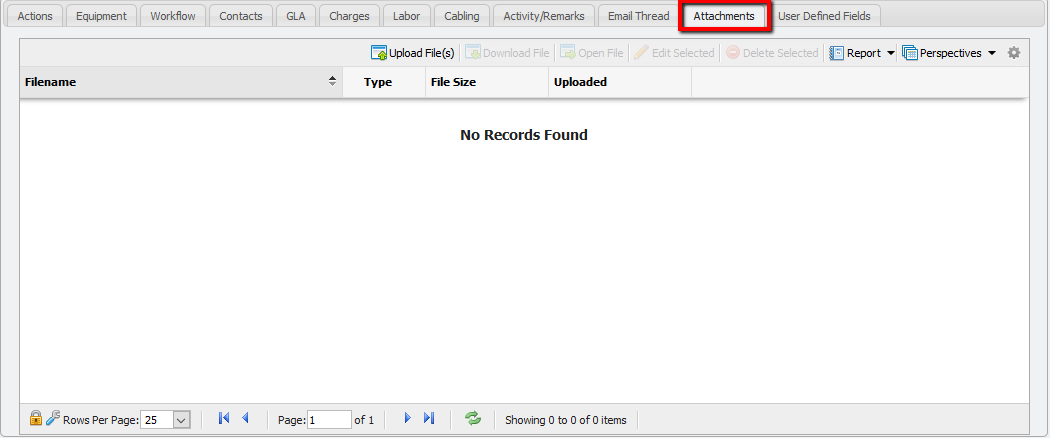
The 'Attachments' tab allows Users to attach files (including .pdf, .jpg, .doc, and more) of interest or relevance to the Service by upload. To attach one or more files, navigate to the 'Attachments' tab and click the 'Upload File(s)' button located immediately above the 'Attachments' Grid. There is a file size limit of 10MBs per file uploaded in this manner.
Uploading a File
To attach one or more files, navigate to the 'Attachments' tab and click the 
Download File
Allows a User to download a file to their local machine. Select the file that is desired to download. Click the 
Open File
This opens the file, if possible, for viewing by the User. Select the file that is desired to be opened. Click the 
Edit Selected
Allows the name of the file to be modified within PCR-360. If a User modifies the name of the file, that is the new name used when downloading the file. To edit the name of the file, first select the file. Next click 
![Manage_attachment_form[1].png](/__attachments/a_cb5105b8f9e4aa976925fd6bfdfb1e0d3f59f1190cd5e1e5af7edff772cccc19/Manage_attachment_form%5B1%5D.png?cb=385088f31776c4259472c3d34e50b93f)
Edit the 'Filename' field and click the 
Delete Selected
This removes the file from PCR-360. To delete an item, select it and click the