
Create an Order
The first step is to create a Service Desk Order.
-
Go to Main > Service Desk > Orders.
2. Click the 
3. Enter the Service Rep (if not populated with User name).
4. Enter the Owner of the desired service.
This can also be done on the Order Action below.
5. If desired, enter the Requestor's name.
6. Next, enter a brief description.
Click the
Adding An Action
Next, add a Service Order Action.
-
Click the
2. Set the Action as "Remove".

3. Select the Service for the Order.
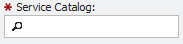
Selecting a Service
Next, choose the Service to Disconnect:
-
If the Service Number in question is known, enter it into the Service ID field and hit enter.
-
Enter the Service Number in one of the following ways:
-
Enter part of the Service ID in the field and press Enter.
Unknown Attachment -
Click on the magnifying glass in the Service field and select the appropriate Service.
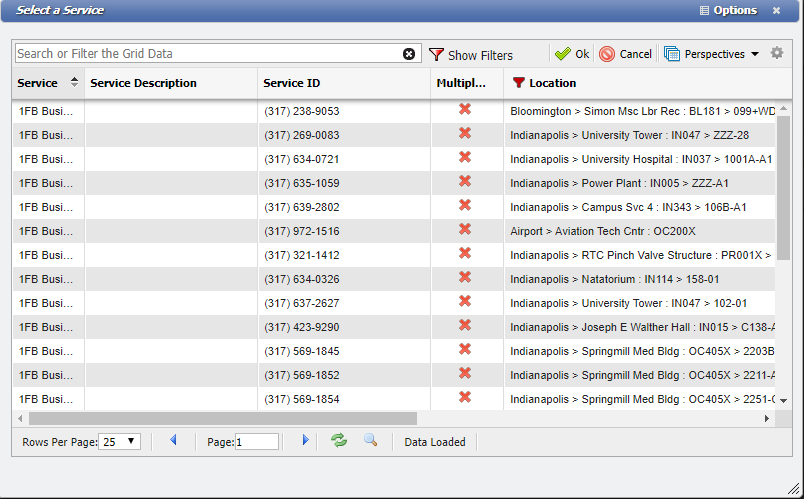
Select a Service form -
Add filters to the columns to shorten the list.
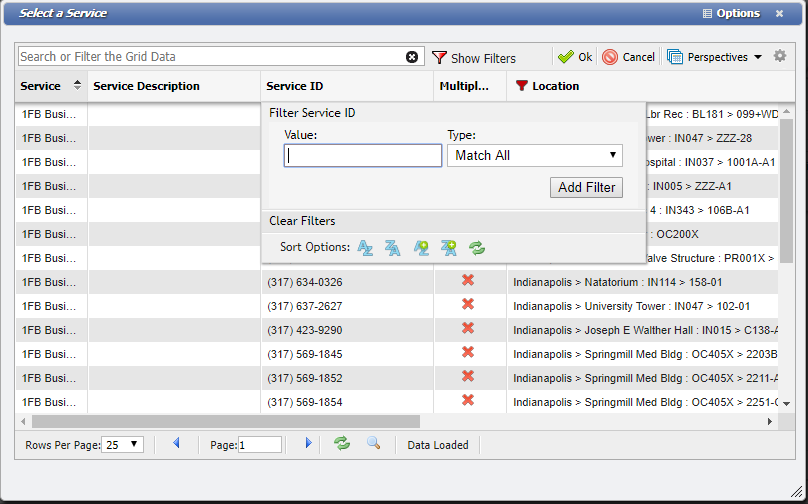
Select a Service Filter form
-
3. Once the Service is selected, click the
4. If there are any matching SDCs (Service Desk Classifications), they display on this screen. The User has the choice of choosing the appropriate SDC, saving without an SDC, or not saving the Action.
Unknown Attachment
Saving (with or without an SDC) at this point populates an Action number next to the SD#. 5. Enter a Due Date and Save or go to the Workflow Tab and start entering the Workgroups.