
Expense GLAs
This tab is of particular importance to the User organization's financial team in that it allows Users to set GLAs for new Services and edit those of existing Services.
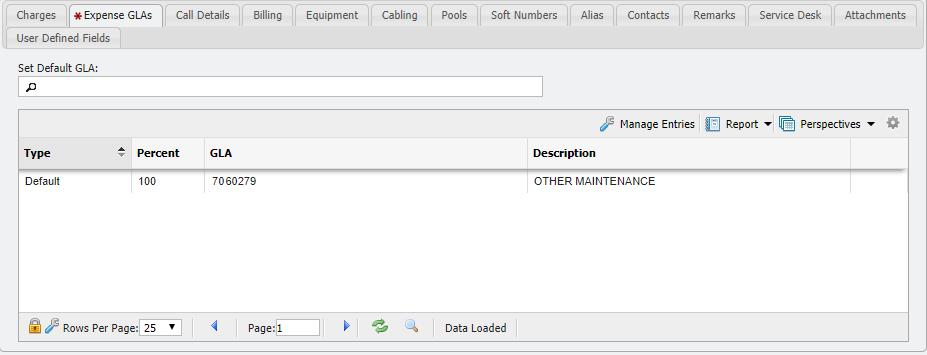
To set a Default GLA for Service, click the Picker Icon ( 
Managing GLA Entries
Users can specify GLAs by clicking the 
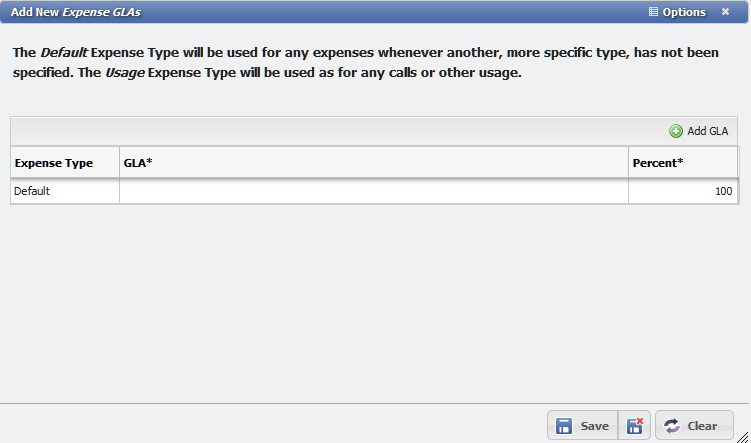
From this form, the User can set a single GLA or Multiple GLAs quickly and without having to re-open the form multiple times. There are three fields that can be edited on the table whether the User is Adding a Single GLA or Multiple GLAs.
-
Expense Type - This drop-down allows the User to select the Expense Type of the GLA.
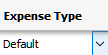
Expense Type field example
-
GLA - This picker allows the User to select the GLA to associate with the Expense Type.
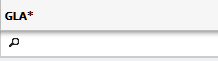
GLA Picker field example
-
Percent - The number selector allows the User to specify the percent of the Expense Type to apply to the GLA.
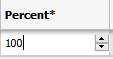
Percent field example
Single GLA
The first row of the table is added by default. The User only needs to select the 'Expense Type', 'GLA', and 'Percent' and click the 
Multiple GLAs
To add multiple GLAs the User can follow these steps:
-
Click the

-
This adds a row to the table.
-
Repeat to add as many rows as are required.
-
When adding multiple GLAs, the percentages of a given 'Expense Type' must equal 100% as in the following example:
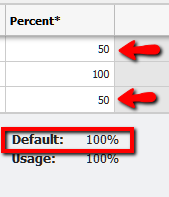
Manage GLA Percentages, sum to 100 example -
If the Percentages are not enough to equal 100%, or exceed 100% the User receives a notice as in the following example:
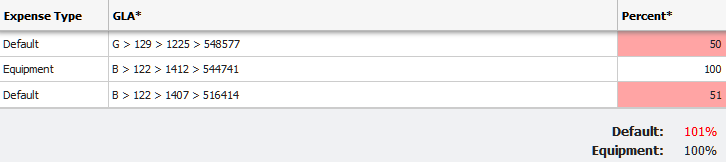
Manage GLA, sum to over 100 example -
Once the User has added all the desired GLAs, the form can be saved by clicking the

To delete a single GLA record the User must follow these steps:
-
From the Add New Expense GLA form, chose the row to delete.
-
In this example, the Equipment Expense Type is being deleted.
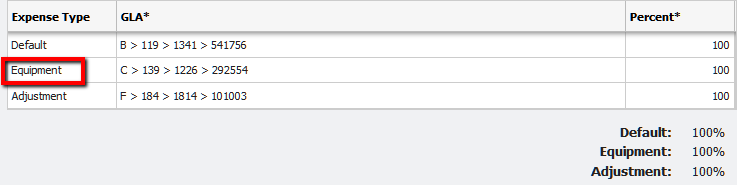
Manage GLA form example -
Right-click the 'Equipment' row. This opens the table context menu.
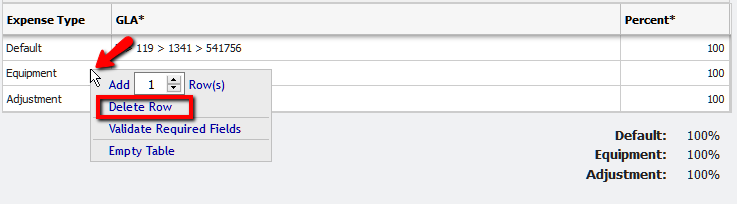
Delete GLA Record example -
Click the Delete Row menu option.
-
The row is deleted.
-
Click the
The Grid updates and the GLA is removed.