Vendor
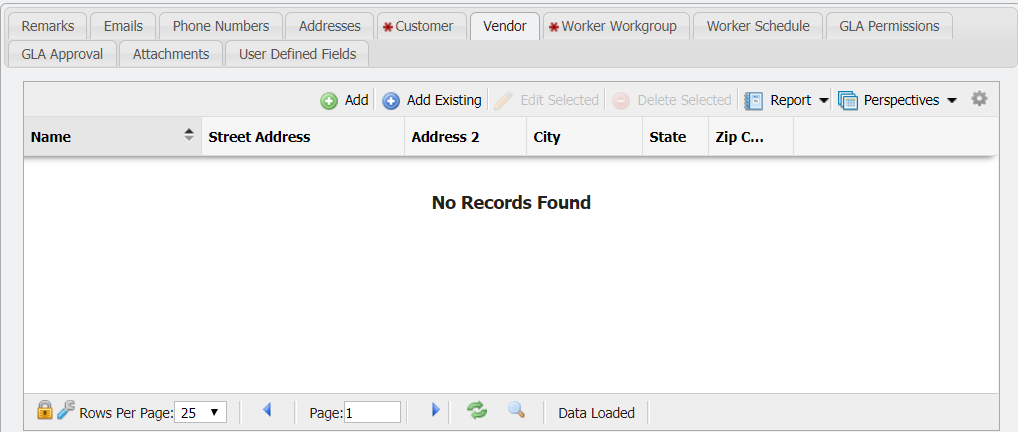
The 'Vendor' tab is another way to add a Vendor to a Contact and visa versa. When a Vendor is added here, that Vendor becomes associated with the Contact so that the Contact will appear in that Vendors 'Contact' tab.
Add New Vendor
This will add a Vendor to the Vendors grid. To add a Vendor follow these steps:
-
Click the

-
This will open the 'Add New Vendor' form
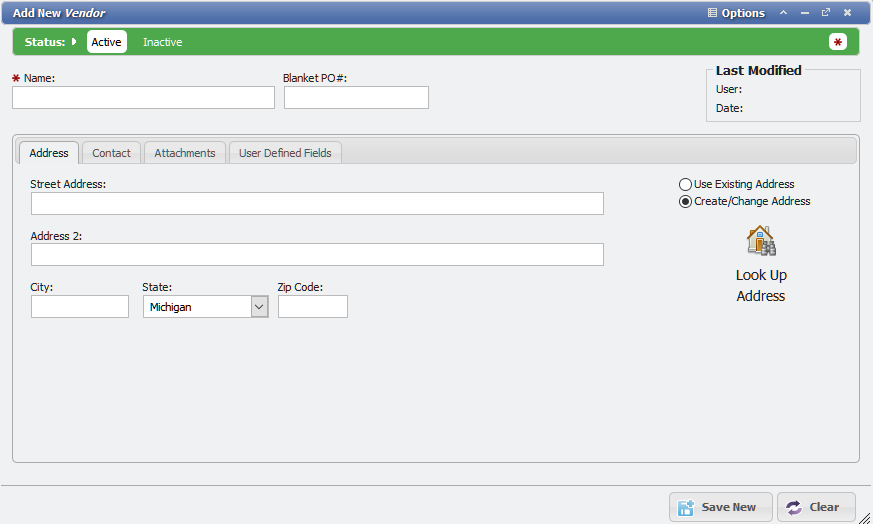
Add New Vendor form -
Fill in the 'Name' of the Vendor along with the Address.
-
When all desired information is entered, click
The new Vendor will be added to the Vendor grid and will be able to have 'Vendor Details' entered.
Add Existing Vendor
-
To use a Vendor that was previously set up, click the
-
This will open the 'Add Existing Vendor' form.
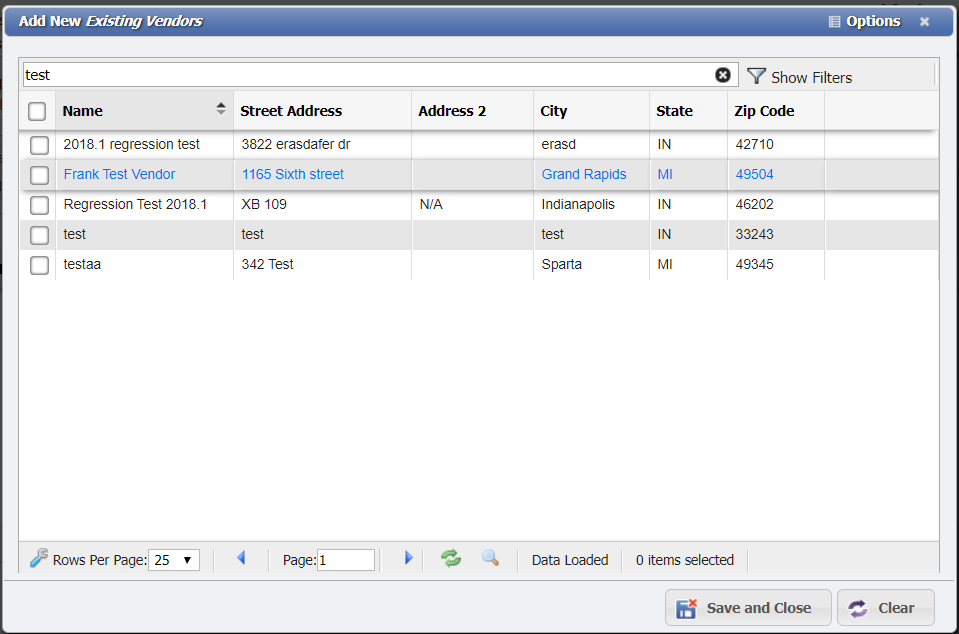
3. Select the Vendor(s) desired from the form and click the 
Delete Selected
To remove a Vendor association from a given Contact just select the Vendor to remove and click the