
The Calendar grid functions as a place within PCR-360 where Users can set up and access appointments and Events without having to leave the comfort of your web browser.
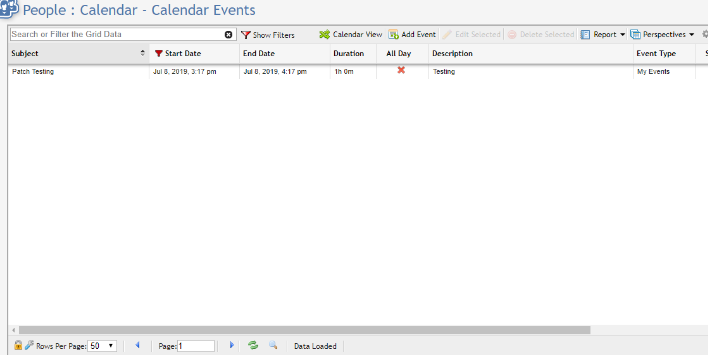
An alternative to the Calendar view is the Grid View which provides all Events in the Calendar using a Grid. To access the Grid View simply click the 
Add a New Event
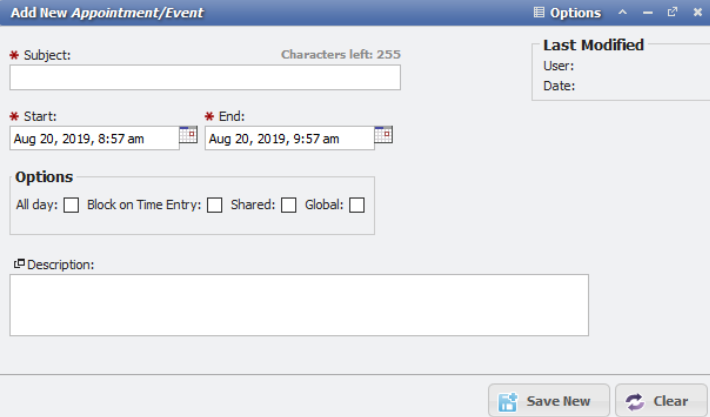
To add a new Event, click the 

All day
The 'All day' flag sets the Event for the entire day. This blocks out time on the Calendar so that another Event cannot be set at the same time.
Block on Time Entry
The 'Block on Time Entry' flag sets the Event to block all the time for a specific day. When the flag is set, the User has to select a Service Catalog to associate with the blocked time. The User can then select specific Activities if they are set in the Time Entry Activities. Additionally, a Description can be added to the Event for future reference.
Shared
The 'Shared' flag provides the same functionality as the 
Global
The 'Global' flag forces the Event to appear on all the Calendars for all the Users. Global Events cannot be blocked on Time Entry. Only a User with Admin Privileges can create these Events.
Category
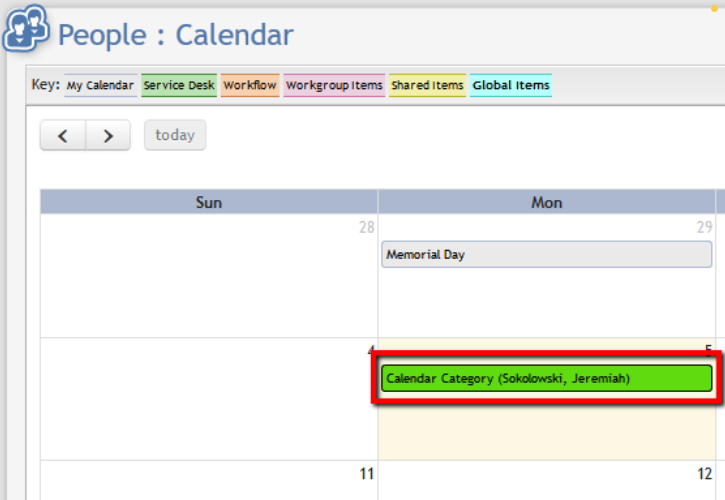
The elements in the top left of the page are not buttons but are a color-coded key for what type of item is showing in the Calendar.
Users can set custom 'Categories' that allows individual Events to be distinguished from one another. To create new Calendar Categories look at the Administration section. Any Categories added in this manner appear in the Category drop-down and can then be selected for use in the Calendar.
Create a Calendar Perspective
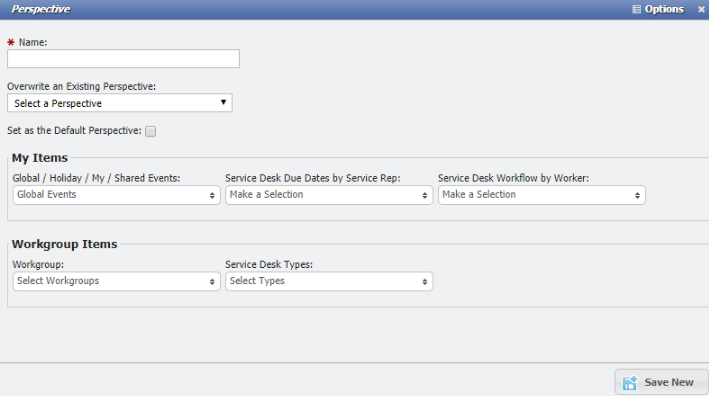
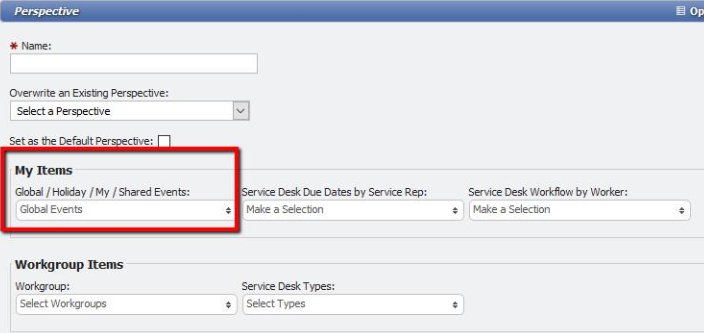
Before Calendar Events can be seen in the Calendar Users MUST create a Perspective of the items. By default, the Calendar will only show the Holidays set in the PCR-360 Holidays grid.
To create a Calendar perspective, click the 
Users can be selective on what types of Events are shown by selecting various values from the 'My Items' and 'Workgroup Items' sections. Only the items explicitly selected in the form will appear in the Perspective.
The 
Share Your Events
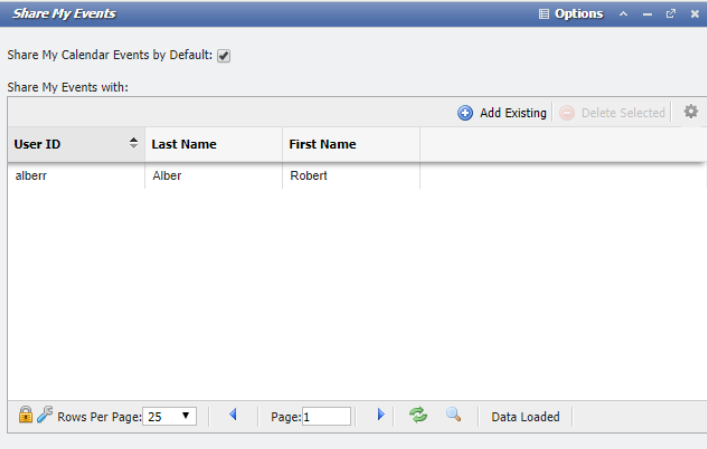
To designate other Users the Events of the current User, click the 
Integration of Service Desk with Calendars
A User can include 'Service Desk' Items on a Calendar if desired.
First, create or edit an existing Perspective. On the Perspective form:
-
'Service desk due date' selector will let the User choose what kind of SD items will show up. The items for which the logged-in User is a 'CSR' will show up on their due date.
-
'Service desk workflow by worker' selector will allow you to see items SD items for which the User is assigned as 'Worker' (but Workflow must have a scheduled date, and that is the date they will show up on).
-
'Workgroup' selector under 'Workgroup Items' section will let the User select 'Workgroups' that the User is either a manager or an assigned Worker of that Workgroup.
-
The 'Service Desk Types' selector next to the Workgroup element further narrows down the selection. This will make Service Desk items show up if the User is the Workflow Manager or part of the Workgroup on a Workflow item that has an unassigned Worker (these will only show up if the Workflow has a scheduled date set).
-
After saving the Perspective, the User can then switch to the Perspective in order to see the Service Desk items.