
Charges
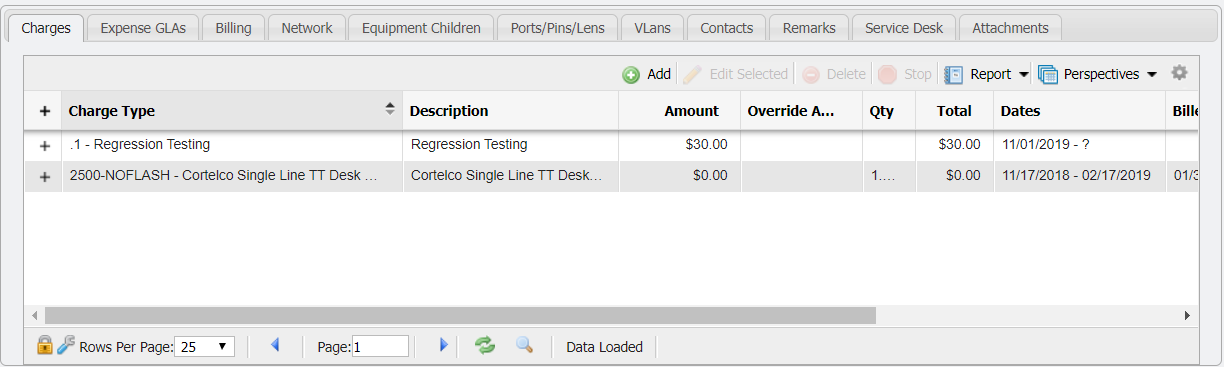
The 'Charges' tab provides the User access to manually control how each Inventory item is billed. A Charge that is added to an Inventory item will be automatically added to any Bill that the item is associated with. There are four functions that can be used to control these charges: Add, Edit, Delete, and Stop. These functions are ONLY made available on Equipment with a status of 'Assigned'.
For the buttons to be made available on the 'Charges' tab, the Equipment must first be both 'Assigned' AND ' Billable'.
Add
After clicking the 
Future Start Dates
When a Start Date is set to be in the future, on a new Charge, the Charge will not take effect until that Date. Also, Service Desk Actions will ignore any Future Charges, so that the Charges will take effect on the desired Date.
Editing
The 
Note: A default Expense GLA must be supplied on the Expense GLAs tab before Charges can be added.
When a Charge is edited, the User is prompted to select when that Change should apply. Selecting the 'Effective Today' button will apply the change immediately while selecting 'Date to Last Billed' will begin as of the date of the last Bill Run. An example of the prompt is displayed below.

Deleting/Stopping
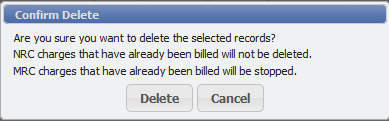
It is sometimes necessary to manually delete or stop a Charge. There are certain restrictions in place to prevent deleting Charges that have been billed. After clicking the 
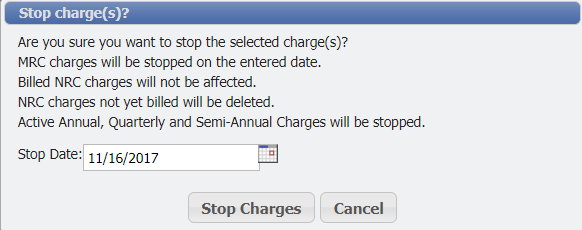
A User can stop a recurring Charge from continuing to be charged with the 
Applying an Alternate Recurring Charge
Unknown Attachment
When an Alternate Recurring Charge is selected as the Charge Catalog (Quarterly, Semi-Annual and Annual Charges) for a new Charge, the form gains the addition of a Recurring Date field. This is the date that will be used by the Billing Process to determine which Bills the Charge should display on. The Recurring Date can not occur after the Start Date.