
Note: This grid is only available when the Barcode Module is enabled.
Summary
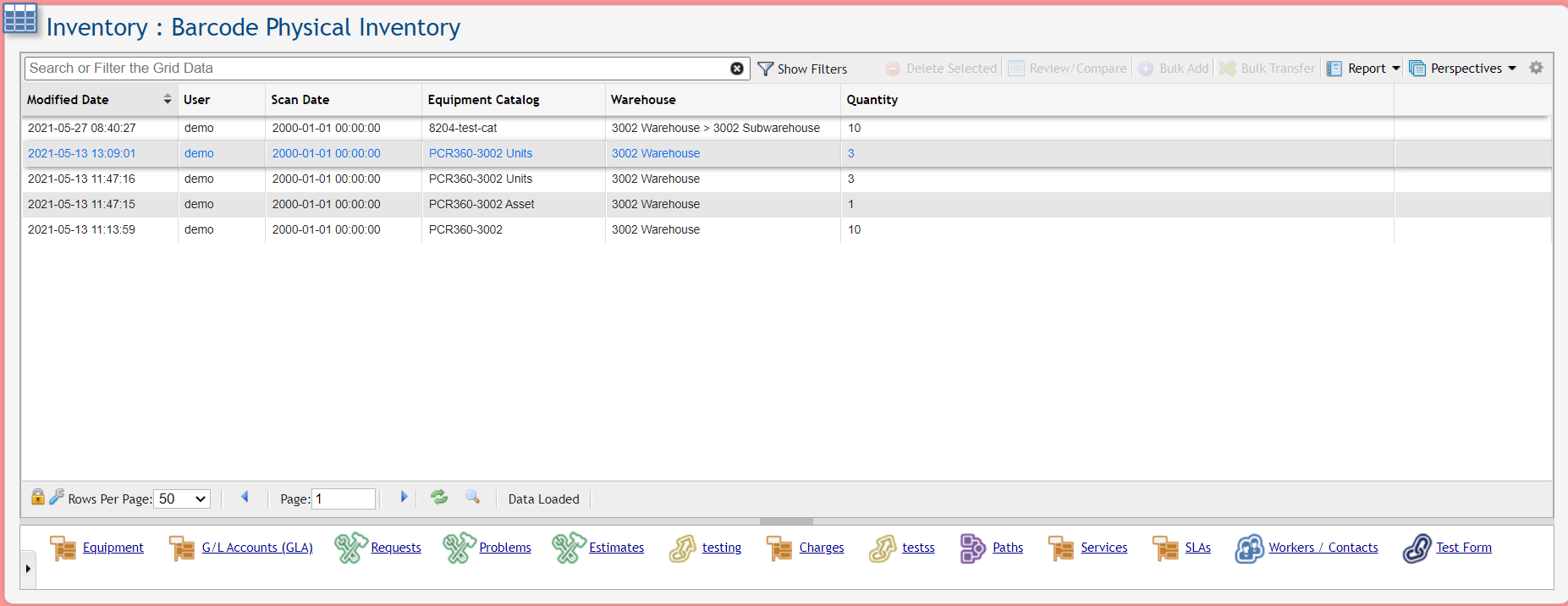
The Barcode Physical Inventory grid allows Users to compare what Inventory Records PCR-360 has recorded, versus that you have physically scanned with the Barcode API Endpoint. This can help your Organization identify Lost Equipment, or obsolete Equipment Records.
Review/Compare Equipment
A User can open the Reconcile Physical Inventory form by either double-clicking on a record, or selecting it and clicking the 
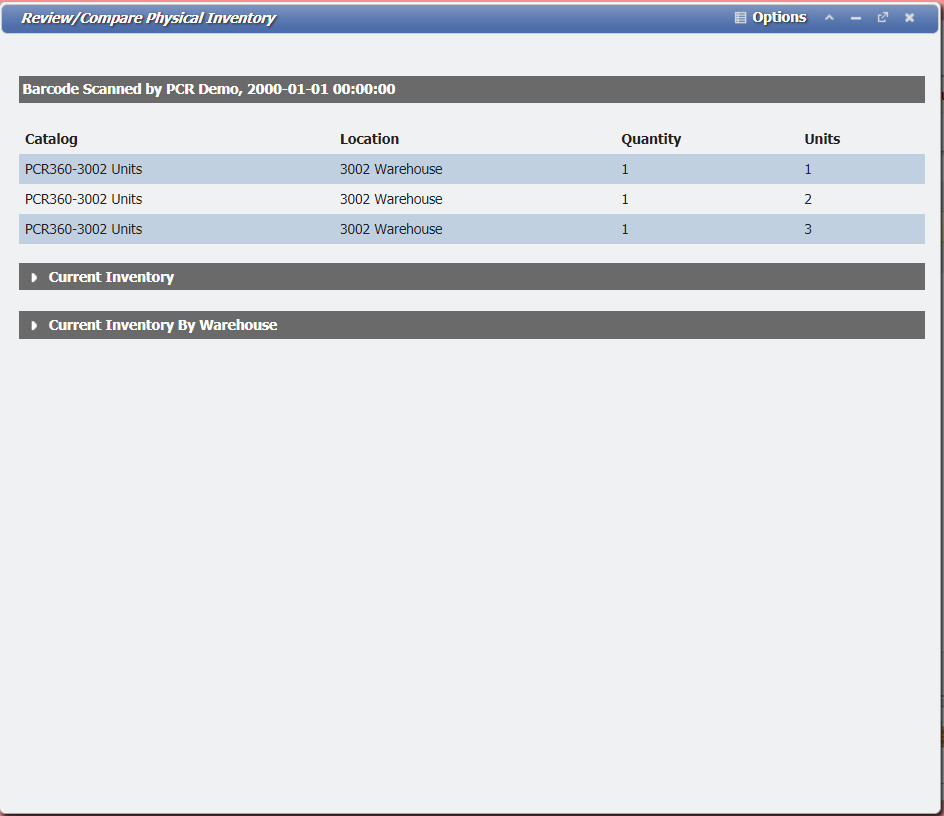
When the Reconcile Physical Inventory form is open, the User can review what was scanned compared to what PCR-360 has a data record for. Users can review this comparison either by the full inventory, or inventory by Warehouse.
Deleting Scans
One or multiple scan records can be deleted by a User when they click on the 
Bulk Add
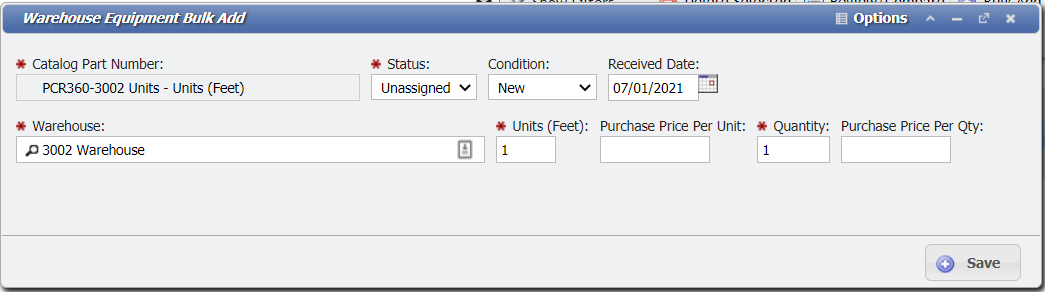
This functionality assigns received equipment to a Warehouse.
-
Select the Scan from which you are adding the parts to.
-
Click the

-
The first option is to select the Catalog Part Number.
-
Double click the Equipment to be added to the Warehouse.
-
Enter how many units the part comes in.
-
For now, leave the status unassigned and the condition new.
-
Select the quantity of the parts you are selecting.
-
Select the price per quantity of the part.
-
Click

-
Confirm the Bulk Add
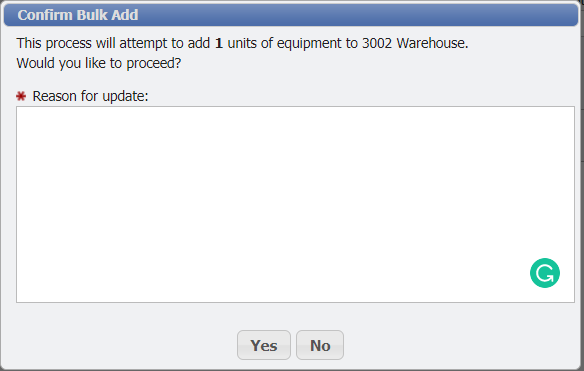
Barcode Physical Inventory Bulk Add Confirmation form example
Bulk Transfer
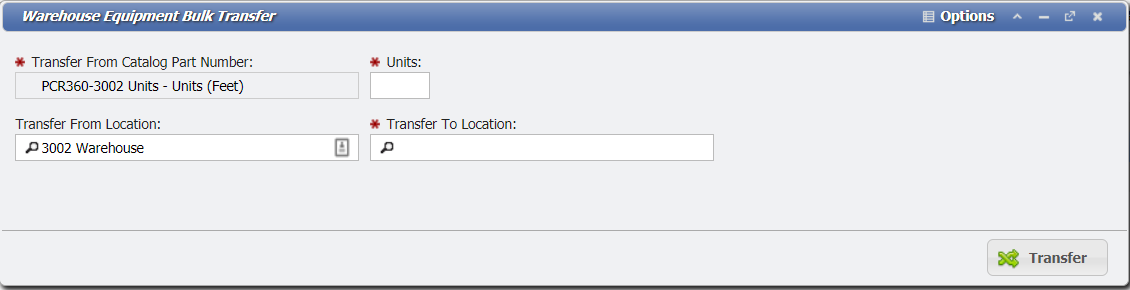
-
Select the Scan from which you are moving the parts.
-
Click the

-
Enter the quantity of items to be transferred.
-
Click the Picker in the "Transfer To Location" field to select from a list of all Warehouses.
-
Click

-
Confirm the Bulk Transfer
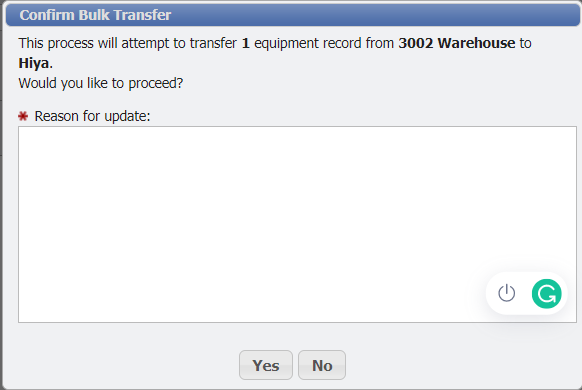
Barcode Physical Inventory Bulk Transfer Confirmation form example