
Overview
PCR-360 can be set up to notify an entire 'Workgroup', or the Manager of a Workgroup when that Workgroup is added to the 'Workflow' of a 'Service Desk Item'.
This process can be used for other forms of messaging when specific actions occur. For more details, please see the pages for 'Events', 'Escalations/Notifications' and 'Custom Events'.
For the two recommended ways of setting up the Notifications, if the Workgroup is updated within Service Desk to a different Workgroup, the new Workgroup will not be sent a message alerting them of the assignment. PCR presently does not support the ability to notify based on when a Workgroup Assignment change event occurs. We welcome a feature request to examine adding this functionality in the future.
Using Notifications, regardless of the Workgroup, for Alerts
-
Navigate to "Admin > Escalations/Notifications > Notifications".
-
Click

-
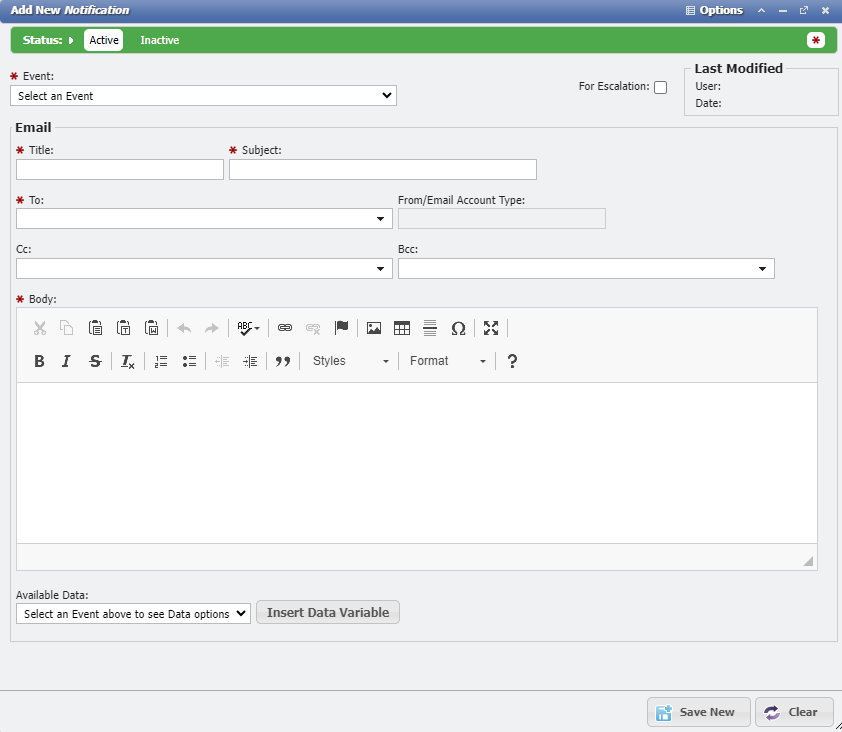
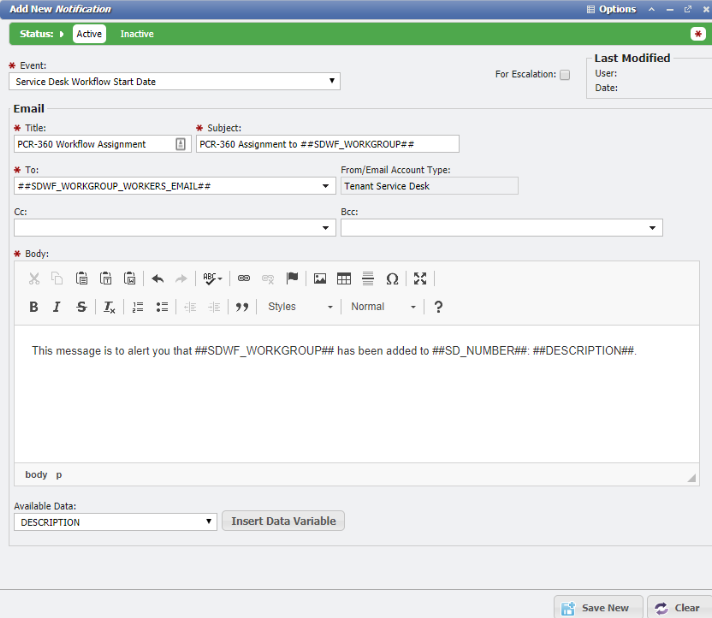
Setup the Notification with the following criteria:
-
Event: Service Desk Workflow Start Date
-
Title: PCR-360 Workflow Assignment
-
Subject: PCR-360 Assignment to ##SDWF_WORKGROUP##
-
To: ##SDWF_WORKGROUP_WORKERS_EMAIL##
-
A different variable can be used to set who should be notified, if only the Manager (##SDWF_WORKGROUP_MANAGER##) or other individual needs to be notified instead of all Workgroup members.
-
-
Personalize the Notification in the Body
-
-
Click

-
Whenever a Workgroup is Assigned to a Service Desk Item, all members of that Workgroup will be sent a message informing them of that fact.
-
Note: If the Workgroup is updated within Service Desk to a different Workgroup, the new Workgroup will not be sent a message alerting them of the assignment.
-
When changing the Workgroup on a Workflow, it is recommended to deleted the current Workflow, and add a new one for the newly desired Workgroup, so that the new Workgroup can be alerted to the assignment.
-
-
Using Notifications and Escalations to Target Workgroups for Alerts
-
Navigate to "Admin > Escalations/Notifications > Notifications".
-
Click

-
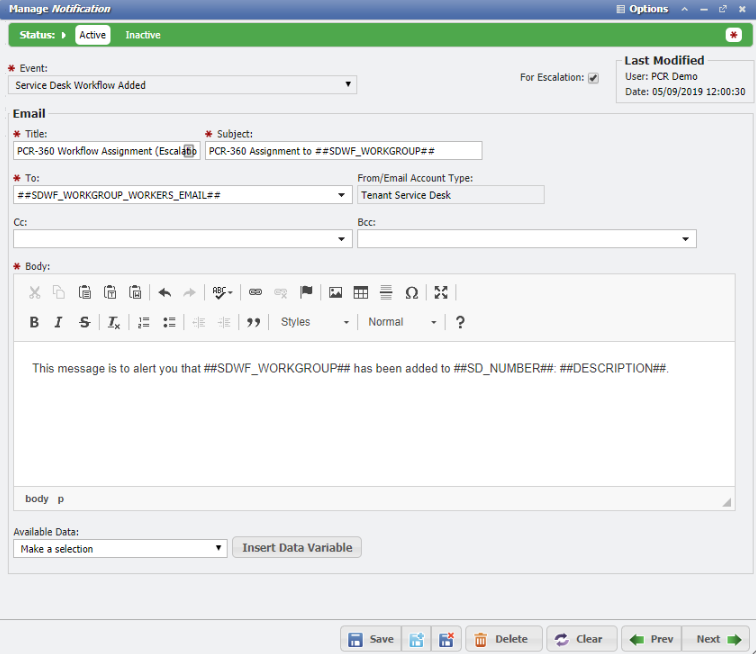
Setup the Notification with the following criteria:
-
Check the box for: For Escalation
-
Event: Service Desk Workflow Added
-
Title: PCR-360 Workflow Assignment (Escalation)
-
Subject: PCR-360 Assignment to ##SDWF_WORKGROUP##
-
To: ##SDWF_WORKGROUP_WORKERS_EMAIL##
-
A different variable can be use to set who should be notified, if only the Manager (##SDWF_WORKGROUP_MANAGER##) or other individual needs to be notified instead of all Workgroup members.
-
-
Personalize the Notification in the Body
-
-
Click

-
Navigate to "Admin > Escalations/Notifications > Escalations".
-
Click

-
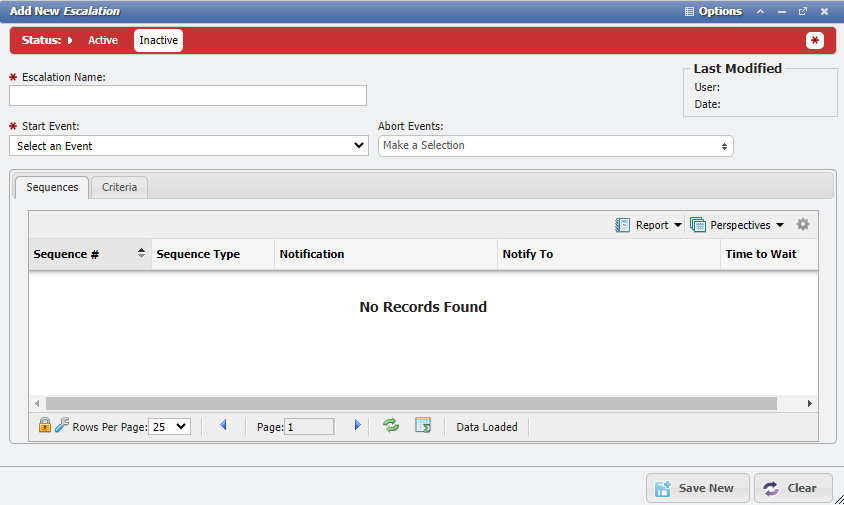
Setup the Escalation with the following criteria:
-
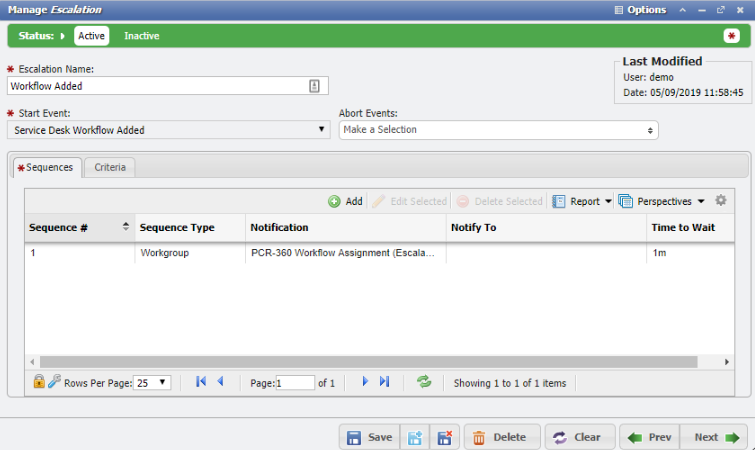
Start Event: Service Desk Workflow Added (per the Notification setup previously)
-
Escalation Name: Workflow Added
-
-
Click
-
Set the Status to
-
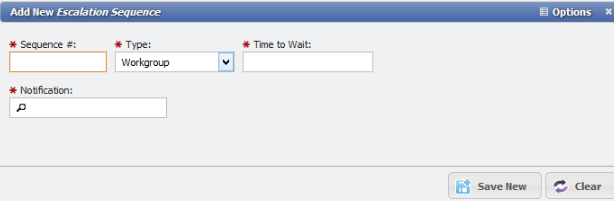
Add a 'Sequence' to the Escalation by clicking

-
Setup the Escalation Sequence with the following criteria:
-
Type: Workgroup
-
Time to Wait: desired delay before the Notification is sent
-
Sequence #: desired sequence number
-
Notification: PCR-360 Workflow Assignment (Escalation) (per the Notification setup previously)
-
-
Click
-
Go to the 'Criteria' tab on the Escalation form.
-
Click
-
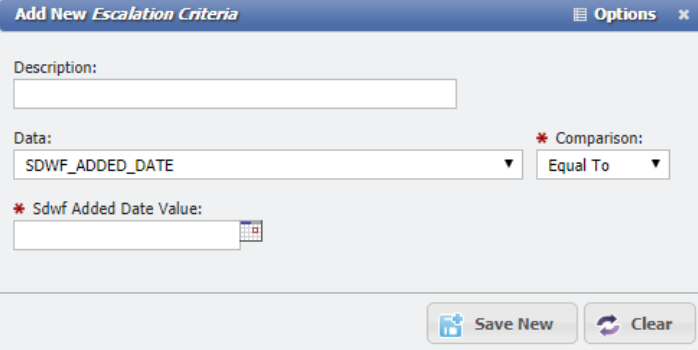
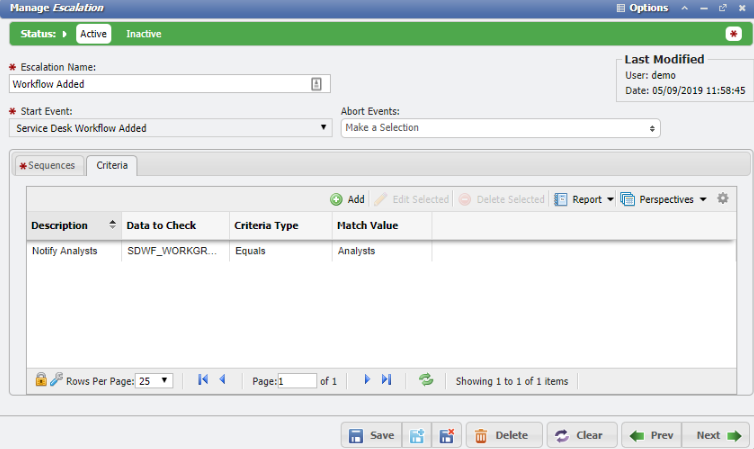
Define Criteria for what Workgroups should receive the message.
-
Setup the Escalation Criteria with the following values:
-
Description: detail of what the criteria is doing
-
Data: SDWF_WORKGROUP
-
Comparison: Equals
-
Sdwf Workgroup Value: Select the desired Workgroup
-
-
Click
-
The Escalation should look as follows:
-
Whenever a Workgroup that matches the Criteria is Assigned to a Service Desk Item, all members of that Workgroup will be sent a message informing them of that fact.
-
Note: If the Workgroup is updated within Service Desk to a different Workgroup, the new Workgroup will not be sent a message alerting them of the assignment.
-
When changing the Workgroup on a Workflow, it is recommended to deleted the current Workflow, and add a new one for the newly desired Workgroup, so that the new Workgroup can be alerted to the assignment.
-
-