
Summary
When there is a need to correct Cabling in PCR-360, the recommended way is to set up a 'Service Order' and create a 'Miscellaneous Action'.
Correcting Cable
1. Navigate to Main > Service Desk > Orders to display the Service Desk Orders Grid.
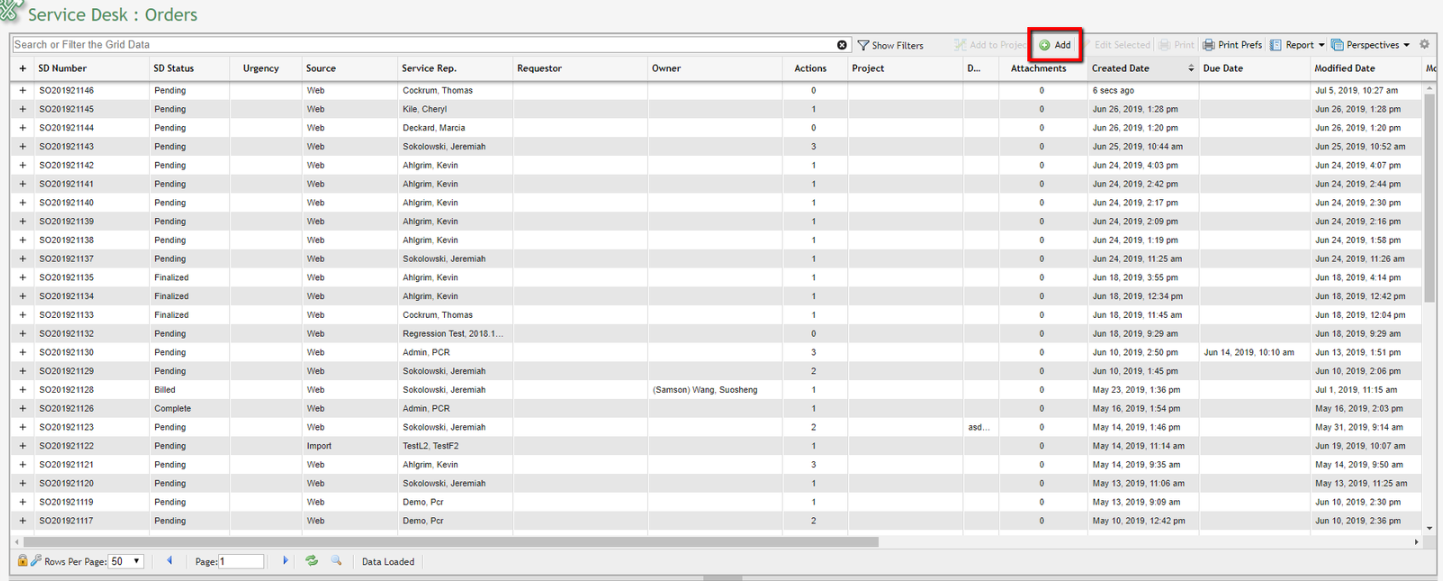
2. Click on the 
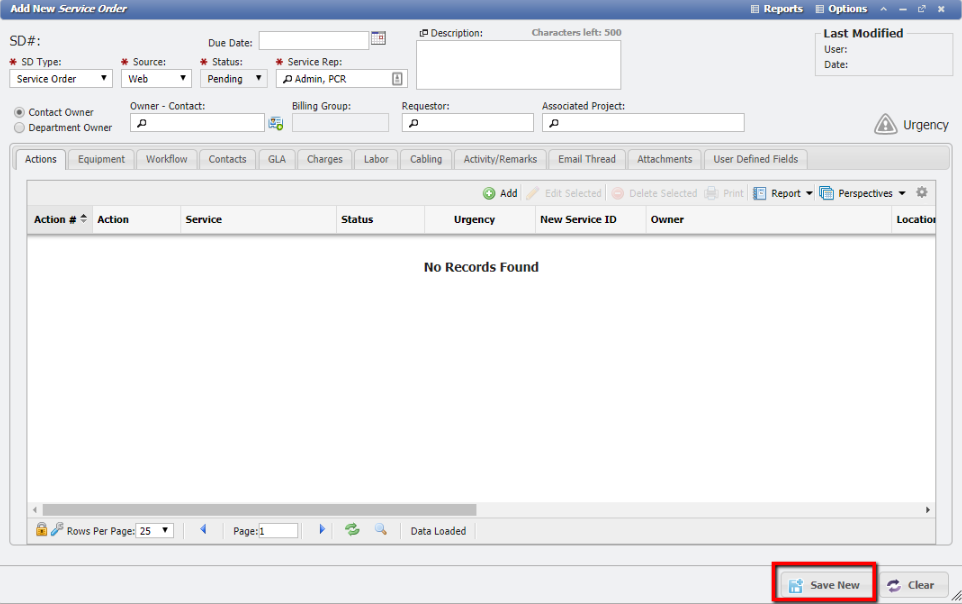
3. Click the 
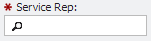
Note: A Service Rep may need to be selected from the Service Rep picker.
4. The Manage Service Order form is displayed.
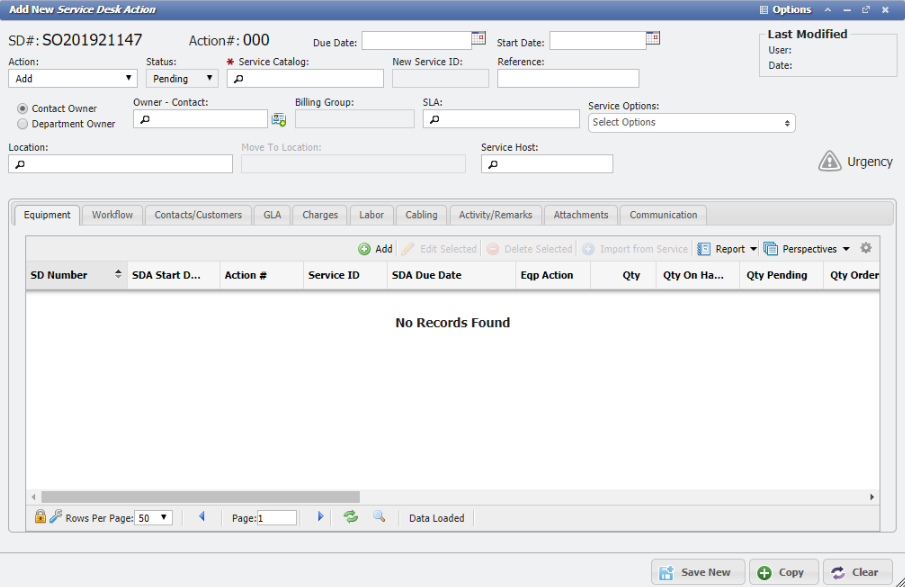
5. Click the 'Actions Tab', then click the 
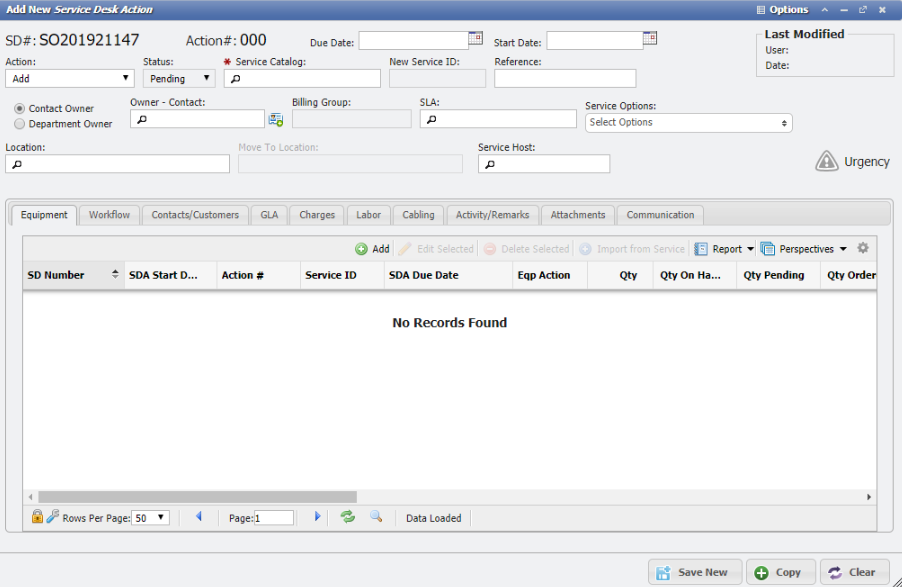
6. The Add New Service Desk Action form is displayed.
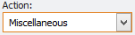
5. From the 'Action Dropdown', select 'Miscellaneous'.
6. In the Service Catalog picker select the Service that has the Cabling that needs to be corrected then click the 
7. Navigate to the 'Cabling Tab' to find the Cabling to Edit and click the 
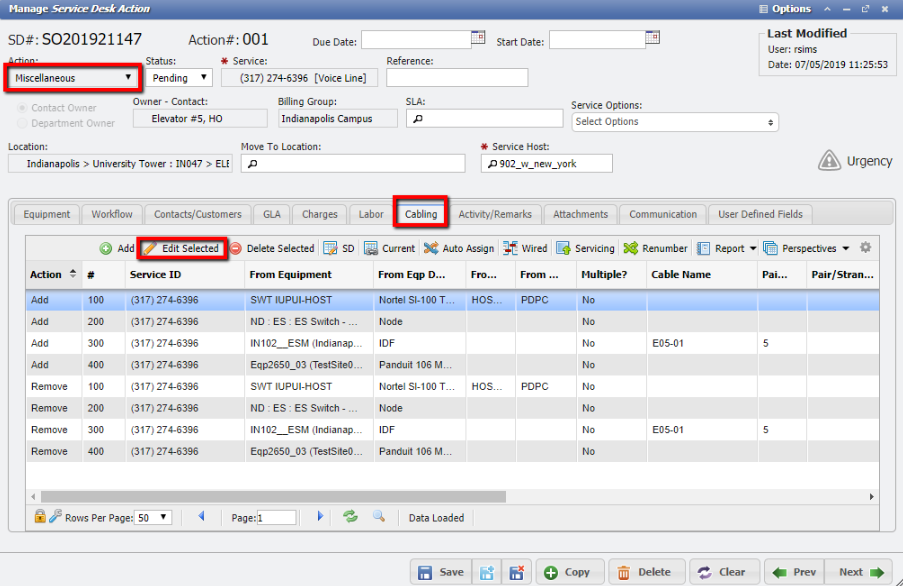
8. The Manage Service Desk Cabling form is displayed.
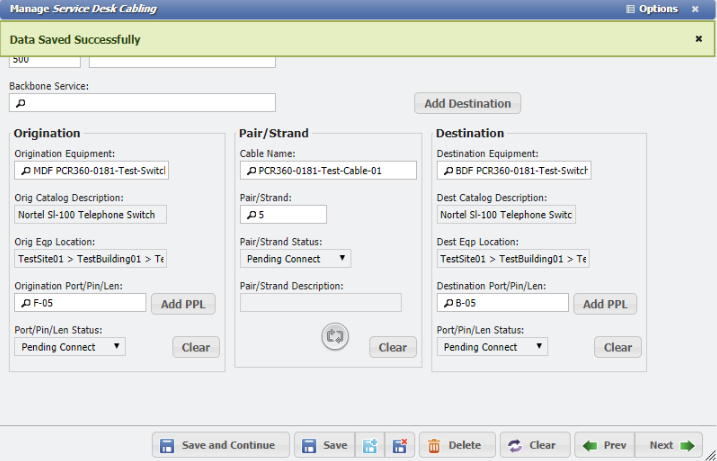
9. Make the desired Cable corrections then click the 
Note: Only 'ADD Actions' lines will be able to be edited, not the 'REMOVE Actions' lines.
10. Complete and Finalize the Miscellaneous Action to save the Cabling changes.