
Overview
For details on setting up initial Charge details please review the articles for Charge Catalogs and Charges Tabs.
Charges can be added by Importing a File or from the API and can be applied to Services, Equipment and GLAs.
Depending on permissions for adding Charges, your Organization may allow for certain Users to add Charges manually or only through the use of Service Desk. This permission is configured by MODIFY_CHARGES_WITHOUT_SERVICE_DESK and Permission Sets. When Service Desk is used to add a Charge, the recurring Charges will be added to Services and Equipment, while non-recurring Charges will only exist on the Service Desk ticket before the Bill is generated.
When the GLAs for Charges need to be updated, the GLA Replace feature of GLA Catalogs will update all Charges.
Reporting on Charges
Overview
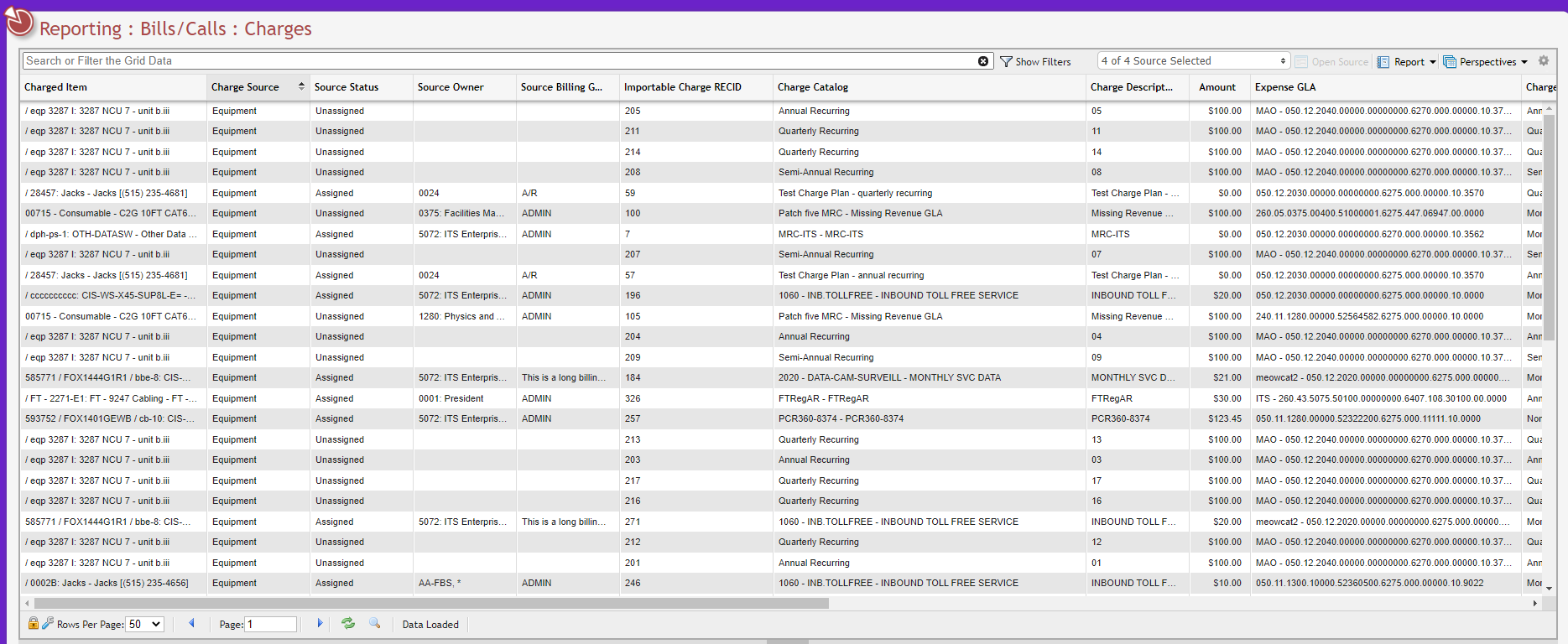
The Charges Report grid allows a User to see the current status of all Charges within PCR-360.
Note: it should be noted that this grid has been optimized for an unfiltered view. Once search filters are applied to the grid, Users will notice slower response times as multiple different Charge Types are selected.
Among the details that can be found on this grid are:
-
The Charge Type of the Charge.
-
Whether or not the Charge can be set to Prorate.
Note: The BILL_MRC_CHANGE_FORCE_PRORATE parameter controls this column's appearance. When set to True, the column will disappear as all Charges will Prorate by default. -
The MRC Start Date value is populated for Monthly Recurring Charges.
-
The MRC Stop Date value is populated for Monthly Recurring Charges.
-
The NRC Transaction Date value is populated for Non-Recurring Charges.
-
The Annual/Semi-Annual/Quarterly Start Date value is populated for Alternate Recurring Charges (Annual/Semi-Annual/Quarterly).
-
The Annual/Semi-Annual/Quarterly Recurring Date value is populated for Alternate Recurring Charges (Annual/Semi-Annual/Quarterly).
-
The Annual/Semi-Annual/Quarterly Stop Date value is populated for Alternate Recurring Charges (Annual/Semi-Annual/Quarterly).
-
The last date the Charge has been Billed Through.
-
The Billing Group is the Charge related to.
-
The Charged Item field, indicates:
-
for Equipment:
-
Equipment ID
-
Asset Tag
-
Serial Num
-
Equipment Catalog
-
-
for Services:
-
Service ID
-
Service Catalog
-
-
for Service Desk Items:
-
Order Number
-
Action Number
-
Phone Number
-
Service Desk Item Number
-
-
for GLAs:
-
GLA Description
-
-
-
The Charge Source, which indicates if the Charge originated from a GLA, Service, Equipment, or Service Desk record.
-
The Importable Charge RECID, which indicates the RECID associated to the GLA, Service, Equipment, or Service Desk record for use in Charge Imports.
-
The Source Status to indicate the current state of the Source.
-
The Charge Catalog for the Charge.
-
The Charge Description for the Charge.
-
The Owner of the Charge is indicated by the Source Owner.
-
The Amount Billed.
-
The Expense GLA for the Charge.
-
The GLA Percent for the Charge.
-
Indicators for:
-
The Charge Catalogs's Bill Forward status
-
The Charge Catalog's Bill Backward status
-
If the Charge has been Billed
-
If Charge is Billing Complete
-
-
The Charge Quantity for the Charge.
-
The Quantity Rate for the Charge.
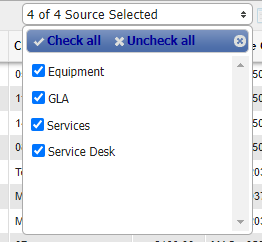
Charge Type Selector
To optimize the performance of this Grid, the Charge Type Selector allows the User to view just Charges of a specific type. When multiple different Charge Types are selected, the Grid will begin to experience some slowness.
Viewing a Charge's Source
To view the source of a Charge, all a User needs to do is click the Unknown Attachment button. This will open the respective GLA, Service, Equipment, or Service Desk record the Charge is associated with.
Common Charges Topics
How to make a comment about a Charge?
There are two ways a comment can be made on a Charge:
-
Using the Charge's Description
-
Making a Remark on the Item the Charge is applied to
Comments within Descriptions
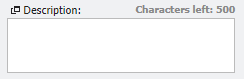
Comments can be added to the Description of the Charge. This gives the comment a high degree of visibility, but also means the comment will display on Bills. This means that a User will need to, later on, go back to the Charge and remove the comment so that it does not keep appearing on future Bills. Due to the maintenance of the Description necessary to support the comment using this method, using this method is not recommended.
Remarks as Comments
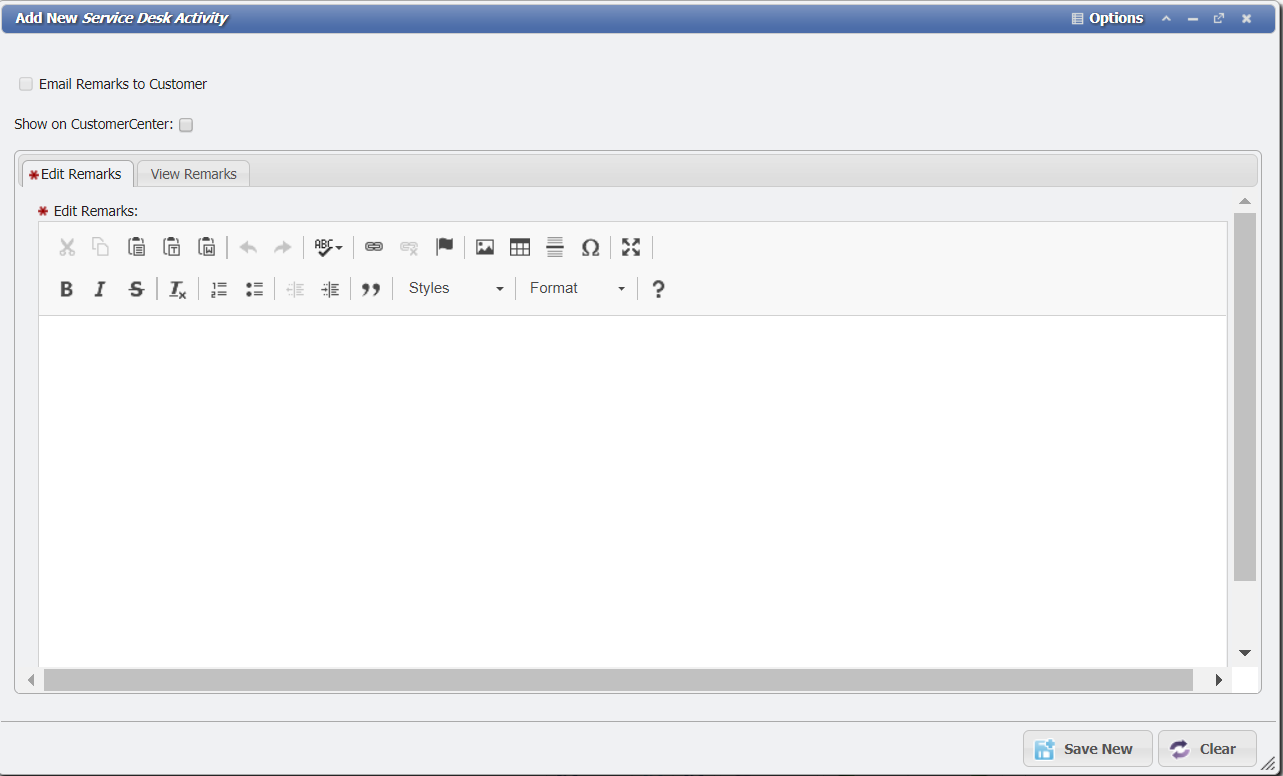
Using the Remarks tab on the item with the Charge (Service/Equipment/GLA/Service Desk Item), comments can be made about the Charge. These Remarks do not have a high level of visibility, and will not appear on the Bill. The Remark is saved for as long as it is left on the record it is saved to, and requires no further action from a User. This makes it the recommended method for putting a comment on a Charge.
How to issue a credit Charge?
How to issue a credit Charge
In PCR-360 issuing a credit is as simple as adding a new Charge. The new Charge simply needs to be set up with a negative amount and the Charge will automatically be created as a credit rather than a debit for the relevant GLA.
Here are two example approaches to issuing credits that can be done in PCR-360.
Same Charge Catalog
In order to set a credit for the same Charge, simply add a new Charge of the same Charge Catalog and make the Amount field negative. This will ONLY work if the Charge in question is a Non-Recurring Charge. Otherwise, the effect would be to set up a recurring credit which would not be desirable. For this example, there is a $421 Charge that was applied to a Service incorrectly.
-
On the Service, Equipment, GLA , or Service Desk item select the
 tab. For this example, a Charge will be added to a Service.
 -
Click the
button to add a new Charge.
-
This will open the 'Add New Charges' form.
-
Select the Charge Catalog that the credit needs to be applied to the Service. For this example, "Data Credit (Nonrecurring)" is being used.
-
Set a Charge Override Amount on the Charge as a negative value.
-
If the original Charge Catalog doesn't allow for a Charge Override Amount, then that flag will either need to be set on the Charge Catalog, or Users will need to use the How to issue a credit Charge option to create a Charge for a given Charge.
-
-
Add a Description to the Charge to indicate the reason for the credit. This Description will appear on the Bill for the Customer to review.
-
Click the
The credit for the Charge will now have been added and will be included in the next Bill cycle. The NRC Total will reflect both the credit and the debit.
Custom Credit Charge Catalog
In order to add a credit with a different Charge Catalog that is specific for "credits", there first needs to be a specific Charge Catalog for credits.
Setup Credit Charge Catalog
-
First navigate to Main > Catalogs > Charges.
-
Click the
-
Set the Name of the new Charge something like "Credit Charge".
-
Set the Type to "Nonrecurring" for this credit Charge Catalog.
-
Leave the Default Amount blank and the Allow Override Amount checkbox selected.
-
Click the
Now this Charge Catalog can be used to create any credits that might be needed.
Add credit for the Charge
This process is nearly identical to manually adding any other Charge. From any of the Charge tabs on Service Desk, Services, Equipment, or GLA Catalogs:
-
Click the
 button.
 -
Select the "Credit Charge" Charge Catalog that was previously set up.
-
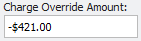
Set a Charge Override Amount on the Charge as a negative value.
-
Enter any other needed information like the Owner or Description.
-
Click the
button to create the Charge.
This Charge will now be applied to the relevant item and ready to be picked up in the next Bill cycle.
What does the Prorate flag do?
Using the Prorate flag
The Prorate flag only applies to Recurring Charges. The default behavior of Charges is to bill the full Charge for the entire month. This behavior can be overridden with the Prorate flag. The Prorate flag bills for a given partial date range based on the Start Date of the Charge. Proration splits the Charge into daily increments based on the Bill cycle. The period between the Start Date of the Charge and the next Bill will be used to calculate a percentage that will be applied to the Amount of the Charge to get the calculated amount for the Prorated Charge.
Admins can force ALL Charges to be Prorated with the Configuration Option BILL_MRC_CHANGE_FORCE_PRORATE .
Note: When using this Configuration Option, the Prorate flag on forms and Prorate column on grids will both be hidden. The Prorate flag will still be set, but the values are hidden to prevent confusion.
Prorate Examples
Assume the following basic information for each of the following scenarios:
-
The last Bill was run for the Month of April, from April 1st through April 30th.
-
The Charge amount is $90.00.
-
The next Bill will run for the Month of May, from May 1st through May 31st.
Without the Prorate flag
-
A User adds a Charge on May 15th, without the Prorate flag set. In June the Bill runs for the full amount of the Charge, $90.00.
-
A User adds a Charge on May 8th, without the Prorate flag set. In June the Bill runs for the full amount of the Charge, $90.00.
With the Prorate flag
-
A User adds a Charge with a Start Date of May 16th, with the Prorate flag set. In June the Bill runs for the prorated amount of the Charge, $45.00.
-
The calculation for this is 15 days divided by 30 days for a total bill period of .5 or 50 percent.
-
$90.00 multiplied by the .5 percent for $45.00 total. (15/30)*$90.00.
-
-
A User adds a Charge with a Start Date of May 8th, with the Prorate flag set. In June the Bill runs for the prorated amount of the Charge, $66.77.
-
The calculation for this is 23 days divided by 31 days for a total bill period of .74 percent.
-
$90.00 multiplied by .74 percent for $66.77 total. (23/31)*$90.00.
-
Note: The actual percent is much longer (23/31 = .7419... ). This was rounded down in this example for clarity's sake only.
-
In practice, the full decimal of this example is multiplied by the Charge amount ($90.00) and the result is then rounded based on the Configuration Option BILLING_ROUND_METHOD .
-
-
Service Catalogs
The Prorate flag on the Service Catalog sets the default behavior of any Default Charges added to the Service Catalog. If the Prorate flag is set on the Service Catalog, whenever a Service is created in the Service Desk Action , the Charge associated the Service will be set to Prorate. This can be verified by opening the Charge on the Action's Charges tab and checking the flag on the Charge.
-
This is the default behavior only, and any User can always override the default behavior by toggling the flag on any given Charge.
Equipment Catalogs
The Prorate flag on the Equipment Catalog sets the default behavior of any Default Charges added to the Equipment Catalog. If the Prorate flag is set on the Equipment Catalog, whenever an Equipment record is added to a Service Desk item, the Charge associated the Equipment will be set to Prorate. This can be verified by opening the Charge on the Action's Charges tab and checking the flag on the Charge.
-
This is the default behavior only, and any User can always override the default behavior by toggling the flag on any given Charge.
Charges
Both of the previous examples are the default behavior of the Services and Equipment Catalogs. However, the Prorate flag on individual Charges can be set for any specific Charge. This is done on the 'Add New Charge' form for Services, Equipment, Service Desk items, and GLA Catalogs.
As previously noted, this flag will be set by default to whatever the value for it is in a Service Catalog Or Equipment Catalog. In the generated Charge, the Prorate flag can be set or overridden based on the needs for that specific Charge on this form. For some Charge types, like the Service Desk Charge, or the GLA Catalog Charge, this is the only place the Prorate flag can be set.
Prorate Flag and Effective Date
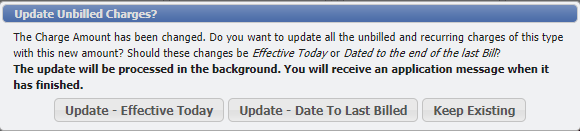
Charges can be one time (Non-Recurring) instances or recurring (Monthly, Quarterly, Semi-Annual, Annual) instances of expenses. For Monthly Recurring Charges, the user has the ability to update these, and specify the Effective Date for the changes. There are two update options for Effective Date: Effective Today or Date to Last Bill, and an option to cancel the update. These options dictate when the changes will become effective.
Effective Today: This means that the MRC will be stopped with the old details (GLA, Amount, Quantity, etc.) yesterday and restarted with the new details today. When the Bill is run for the next billing cycle, if the Prorate flag is set, the charge will bill a portion of the month with the old details and the rest of the month with the new details. Alternate Recurring Charges (Quarterly, Semi-Annual and Annual), can not be set to using the current Date as the Effective Date.
Date to Last Bill: This means that the MRC will be stopped with the old details (GLA, Amount, Quantity, etc.) on the Billed Through Date and restarted with the new details on the next day. When the next Bill is run the entire month should be billed with the new details. Alternate Recurring Charges (Quarterly, Semi-Annual and Annual), when updated will use this as the Effective Date.
Keep Existing: This means that changes to the MRC will be left unchanged, and all new MRCs created after this point will reflect the updated value for the Charge Amount.
Applying an Alternate Recurring Charge
Unknown Attachment
When an Alternate Recurring Charge is selected as the Charge Catalog (Quarterly, Semi-Annual and Annual Charges) for a new Charge, the form gains the addition of a Recurring Date field. This is the date that will be used by the Billing Process to determine which Bills the Charge should display on. The Recurring Date can not occur after the Start Date.