
Add to Order
To use the 
-
Click the

-
This will open the 'Add New Existing Equipment' form.
-
Select the Equipment from the grid to be Returned.
-
Click the

The Equipment will now be added to the grid on the Equipment tab. The Return Order can be advanced when all Equipment has been added.
Remove from Order
To use the 
-
Select the Equipment from the grid to remove from the order.
-
Click the

Note: This will only remove the association of the Equipment from the Return Order and will not delete the Equipment or the Return Order.
Process Items(s)
To use the 
-
Select the Equipment to be processed.
-
Click the

-
This will open the 'Manage Return Order Equipment Processing' form.
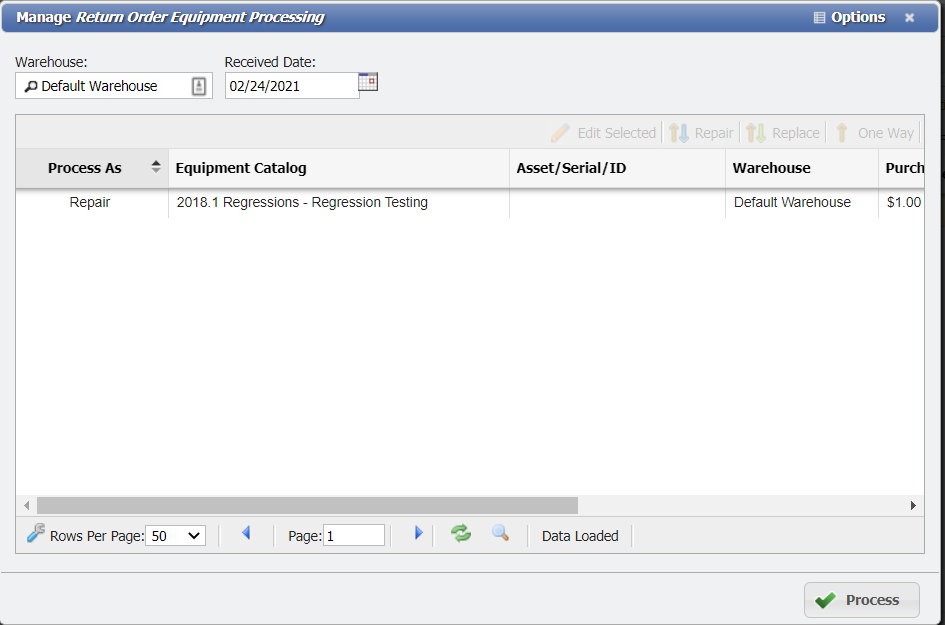
Manage Return Order Equipment Processing form example
From this form, the User can adjust some key options before receiving an item for tracking reasons. The User can assign incoming repaired/replaced Equipment to any Warehouse. If an item was received on a different date then the current date, the User can edit the 'Received Date' here as well. Selected items from the Order cannot be processed here with individual Warehouse and Date assignment. All items selected for this form will be processed with the set values. To set different Warehouses or Dates, select appropriate items separately.
Edit Selected
The User can modify the 'Action', 'Asset Tag', 'Serial Number', 'Equipment ID', and 'Condition' by following these steps:
-
Click the
-
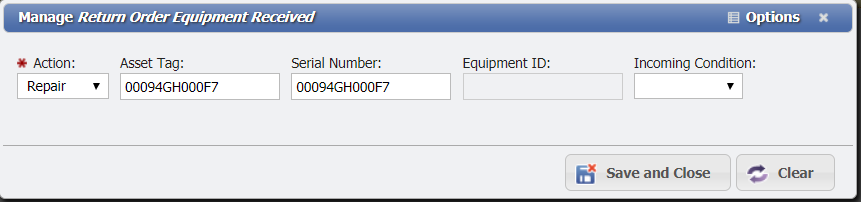
This will open the 'Manage Return Order Equipment Received' sub-form.
-
Select the Action using the drop-down, either Repair or Replace. The difference is explained on the Return Order wiki.
-
If desired change the Asset Tag, Serial Number, and Equipment ID.
-
Select the 'Condition' with the drop-down, either 'New', 'Used', or 'Refurbished'.
-
Click the
Repair
When the User clicks the 
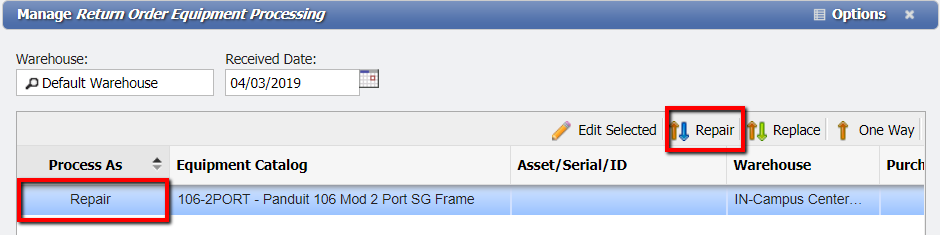
The User can add the 'Repair' option to the 'Process As' Field by following these steps:
-
Click the

-
This will insert 'Repair' into the 'Processed As' Column.
3. When the 
Replace
When the User clicks the 
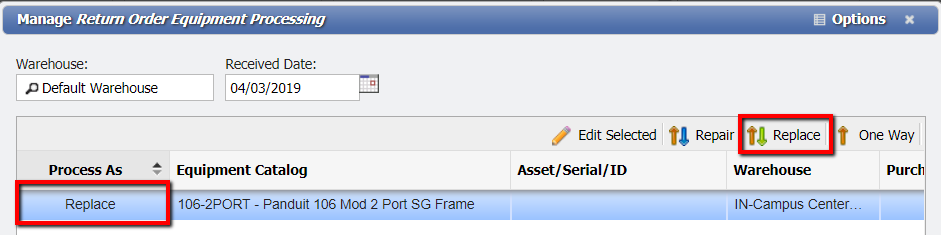
The User can add the 'Replace' option to the 'Process As" Field by following these steps:
-
Click the

-
This will insert 'Replace' into the 'Processed As' Column.
-
When the

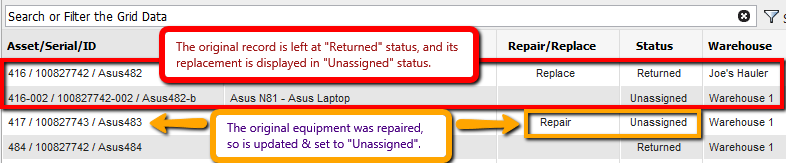
In the data sample below, one item was Replaced while the other Repaired. The Return Order keeps track of all outgoing and incoming Equipment records related to that particular Order, so replacements are also listed on the Order.
One Way
The 
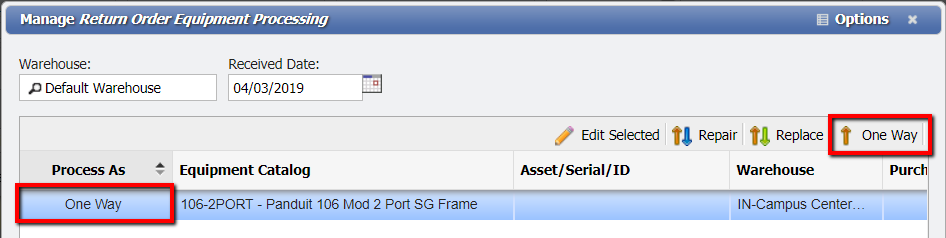
The User can add the 'One Way' option to the 'Process As" Field by following these steps:
-
Click the

-
This will insert 'One Way' into the 'Processed As' Column.
-
When the

When finished click the 