Menus and Links
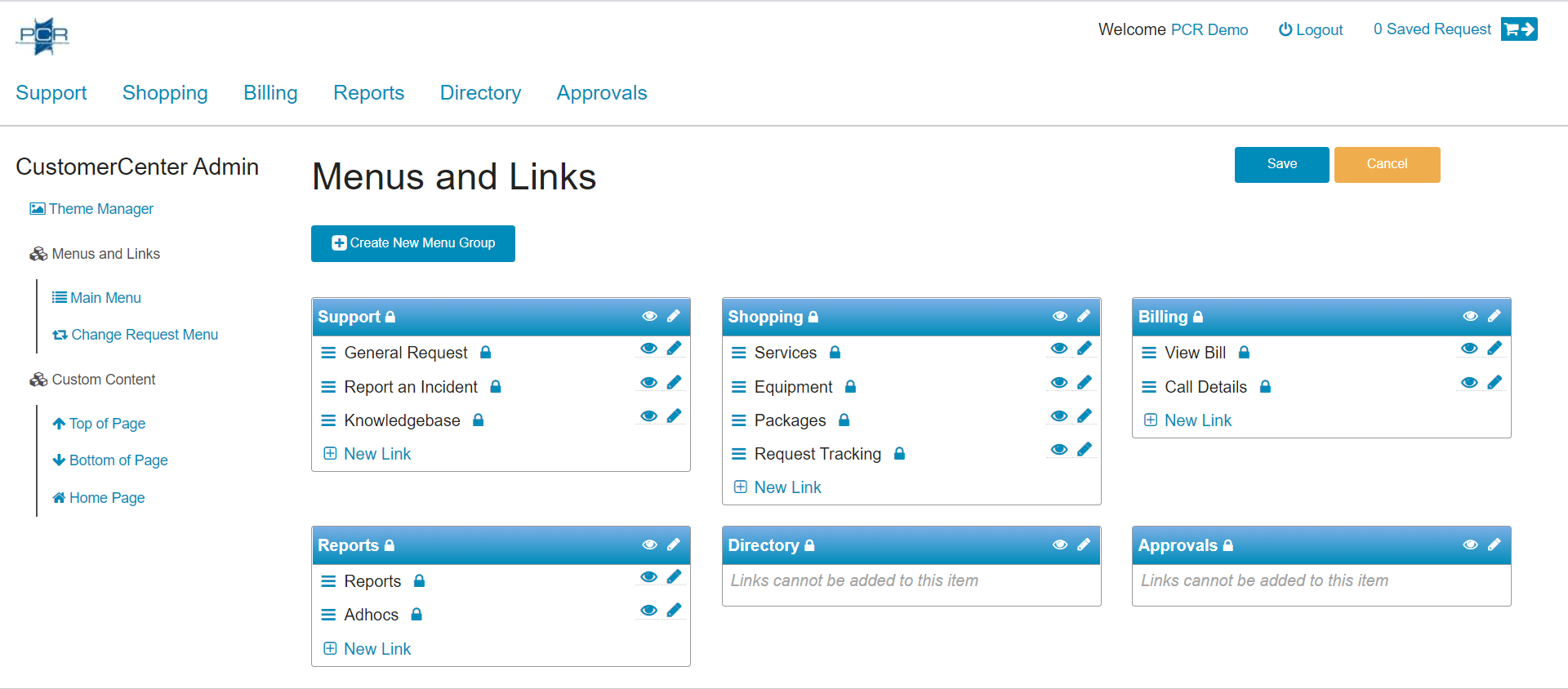
The Menus and Links section allows a User to update Menu and Link permissions and labels to further customize the appearance of your Organization's CustomerCenter. It also allows for changing the Order or currently available Menus and Links, as well as creating new Menus and Links to display.
Once updated are finished, a User can click the 

When an item is deleted, it will still display on the screen until the changes are saved. The Menu/Link will display similar to the below image:

Menus
Menus can be dragged around the page to change the order in which the Menu Options appear within the CustomerCenter Navigation Menu. Menu Items display in order from right-to-left, and top-to-bottom.

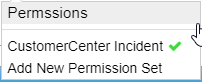
The Permissions Dropdown Menu opens when the User hovers over on the Permission Builder Icon. It displays all Permission Sets that grant access to the Menu. Clicking on any selection opens the Permission Sets Grid so that the User can update the Permissions.

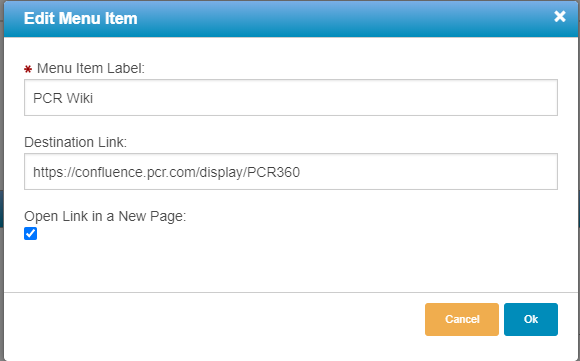
The Edit Menu form allows the user to configure the displayed label and destination for the User to be navigated to. Users can also enable new pages to open for the navigation.
Note: The Destination Link for Default PCR-360 locations can not be edited.


Note: Default PCR-360 Links can not be deleted.

New Menu options can be created by clicking the 
Links
Users can use the Link Sorting Icon ( 

The Permissions Dropdown Menu opens when the User hovers over on the Permission Builder Icon. It displays all Permission Sets that grant access to the Link. Clicking on any selection opens the Permission Sets Grid so that the User can update the Permissions.

The Edit Menu form allows the user to configure the displayed label and destination for the User to be navigated to. Users can also enable new pages to open for navigation.
Note: The Destination Link for Default PCR-360 locations can not be edited.


Note: Default PCR-360 Links can not be deleted.


Note: Default PCR-360 Links can not be deleted.

New Menu options can be created by clicking the