
Build a Notification
There are a number of standard Notifications that come pre-built in PCR-360. Sometimes, however, these can be insufficient for an Organization's needs.
To add a new Notification that can be sent by an Escalation follow these steps:
-
Click the

-
This will open the 'Add New Notification' form.
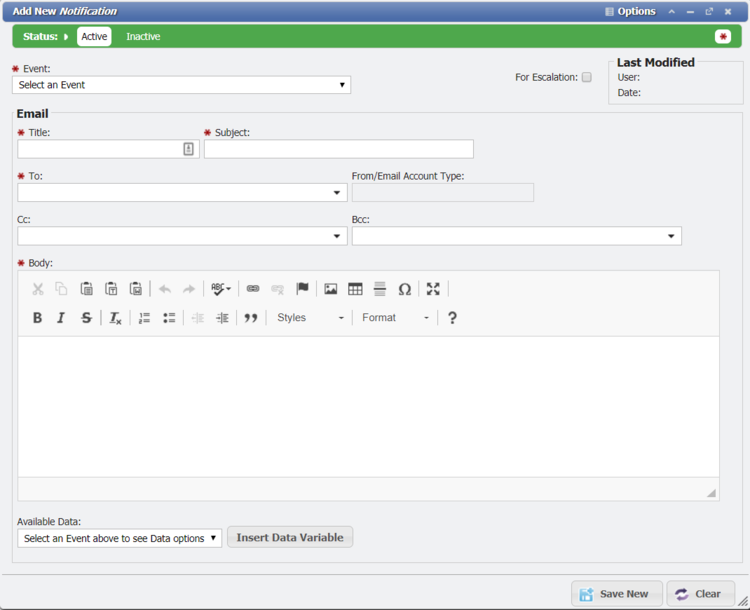
Add New Notification Form example
-
On this form the User can specify the who, what, where of a given Notification.
-
The 'Event' field is required. The selected 'Event' in this field corresponds directly to the Start Event of an Escalation.
-
Set a 'Title', which is required, for the Notification for internal reference.
-
Set the email related fields of the Notification. These will be inserted into their equivalent email fields:
-
'Subject', which is required, will serve as the email subject.
-
'To', which is required, will serve as the To field of the email.
-
'Cc' will serve as the Cc field of the email.
-
'Bcc' will serve as the Bcc field of the email.
-
'Body', which is required, is the main body of the email.
Note: All of these fields can hold either static values like a particular email address, or a Hash Variable to dynamically select the information from elsewhere in PCR-360. For more information see the next section, Setting "Hash Variables".
-
-
Once all the fields have data, click the

Use of HTML Tags
Some fields within PCR-360 allow Users to input HTML tags to make displaying that information a richer experience for those that are expected to consume it. For more information on HTML tag usage, please see the wiki entry for it.