
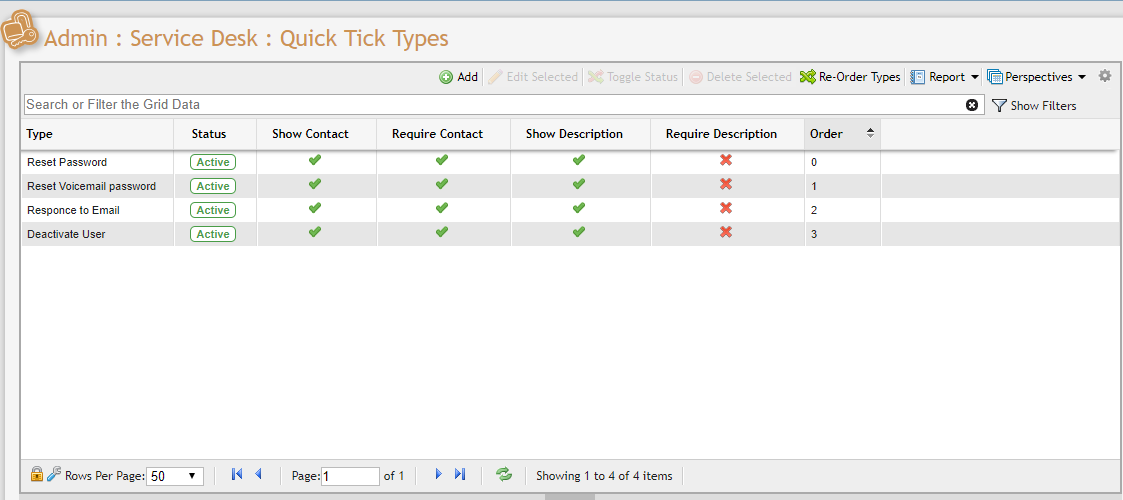
'Quick Ticks' can be managed from here. Quick Ticks are intended to be used for simple tasks, what no other action is required for. Examples for what a User might wish to set up for a Quick Tick Type include initiating a Password Reset upon request form another User, or triggering an internal process such as a 'Custom Event', 'Notification' or 'Escalation'.
Simply navigate to Admin > Service Desk > Quick Tick Types to open the Quick Ticks Grid and manage them. Users can perform several types of actions here.
Add
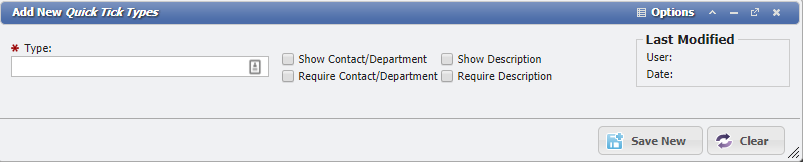
This process is used to create a Quick Tick Type that can be used to create Quick Ticks.
-
Click

-
Enter a Unique name for the Quick Tick Type.
-
Each Quick Tick Type can minimally have a Contact and Description. Toggle the appropriate check box to have it appear for use.
-
If you want them to be required for the User, you can toggle the Required check box.
-
-
Click
-
You can optionally define as many User Defined Fields as you would like to maintain additional information.
Edit Selected
Once a Quick Tick has been created Users can edit it by clicking 
Toggle Status
Clicking 
Delete Selected
Clicking 
Re-Order Types
The order of Quick Ticks in the drop-down selector can be changed by clicking 
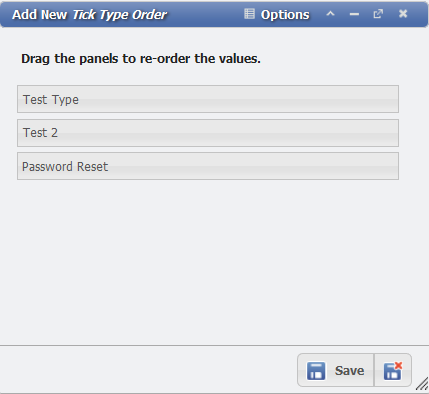
From this form, a User can select a new order for the Quick Ticks in the drop down. This is done by using a drag and drop. When the order is as desired, click 