
Create an Estimate
-
Go to Main > Service Desk > Estimates.
2. Click the 
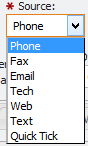
3. Change the 'Source' in the drop-down if desired.
4. Choose the 'Service Rep' (if not already populated with your name) into the picker.
5. If desired enter a brief 'Description' of the Estimate (this is not required but encouraged)
6. If known or needed enter the Contact or Department into the field.

Note: The Owner can be either a Contact or Dept. Hierarchy. To select either just toggle the selector and enter the owner (or use the picker ![Hierarchy_picker[1].png](/__attachments/a_309afee77a38f3fdcdb5746d5e13640421f7f2a34786e426c12951b1ad61762a/Hierarchy_picker%5B1%5D.png?cb=b0f6e66e7970c76e677e4ac3406ae0fd)
7. If known or needed, enter Requestor into the field.
8. Click the
An Estimate number will now be displayed in the upper left-hand corner of the screen.
Add Equipment to an Estimate
-
Click the 'Estimate Tab'.
Unknown Attachment
2. Click the Unknown Attachment button.
3. Choose the desired 'Equipment Catalog' with the picker.
Unknown Attachment
4. Enter the 'Quantity' of the Equipment into the field.

5. If the Equipment is Billable click the 'Billable' flag.

6. Click the
Repeat steps 2-5 for all needed Equipment.
Add Estimated Labor to an Estimate
-
Click the 'Estimate Tab'.
Unknown Attachment
2. Click the Unknown Attachment button.
3. Select the type of Labor with the 'Labor Type' dropdown
Unknown Attachment
4. Enter the 'Hours' into the field.
Unknown Attachment
5. Enter the 'Workgroup' that will do this work.
Unknown Attachment
6. Enter or change the Rate for this Labor with the 'Rate' field.
Unknown Attachment
7. If the Labor is billable click the 'Billable' flag

8. If desired, enter a Description of this Labor.
9. Click the
Repeat steps 2-9 for additional estimated Labor entries
Add Estimated Charges to an Estimate
-
Click the 'Estimates Tab'.
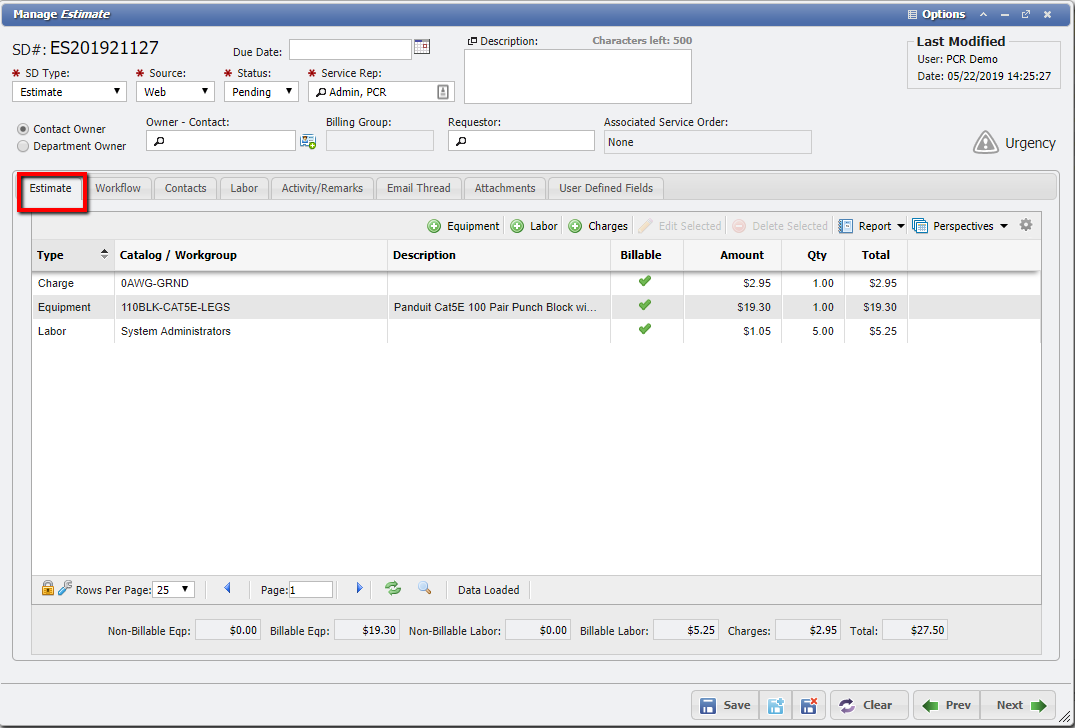
2. Click the 
3. Choose the desired 'Charge Catalog' from the picker.
Unknown Attachment
4. Enter the 'Charge Amount' into the field.
Unknown Attachment
5. Enter the 'Quantity' of the Charges into the field
Unknown Attachment
6. If desired, enter a Description of this Labor into the Description field.
7. Click the
Repeat steps 2-7 for additional estimated Charge entries.
Create Service Order from Pending Estimate
-
Open an Estimate with a Pending status, that does not already have an 'Associated Service Order'
Unknown Attachment .
2. Change the 'Status' to Complete.
3. Click the 
4. Click 'Yes' on the 'Complete this Estimate' dialog.
5. This will open the 'Create a Service Order' form.
Unknown Attachment
From this form the User can choose one of three options:
-
The User can Associate the Order with any existing Order or that Order's Actions. Click the 'Find a Service Order' picker to select any existing Order. To associate the Estimate with the Order no further action is needed.
-
To further associate the Estimate with a specific Action on the Order, click the 'Find a Service Order Action' picker and select the Action desired. Click the

-
Leaving the 'Find a Service Order' picker blank and clicking the
Clicking the 'Cancel' button will NOT associate the Estimate with an Order and close the form.
Create Service Order from Complete Estimate
-
Open an Estimate with a Complete status, that does not already have an 'Associated Service Order'
Unknown Attachment .
2. The Estimate will have a Unknown Attachment button on it.
3. This will open the 'Create a Service Order' form.
Unknown Attachment
From this form the User can choose one of three options:
-
The User can Associate the Order with any existing Order or that Order's Actions. Click the 'Find a Service Order' picker to select any existing Order. To associate the Estimate with the Order no further action is needed.
Unknown Attachment
-
To further associate the Estimate with a specific Action on the Order, click the 'Find a Service Order Action' picker and select the Action desired. Click the

Unknown Attachment
-
Leaving the 'Find a Service Order' picker blank and clicking the
-
Clicking the 'Cancel' button will NOT associate the Estimate with an Order and close the form.
4. Click the