
Cable Pairs/Strands: Cable Grid
Unknown Attachment
Add Pair/Strand
-
Click the Unknown Attachment button.
-
This is open the 'Add New Pair/Strand' form.
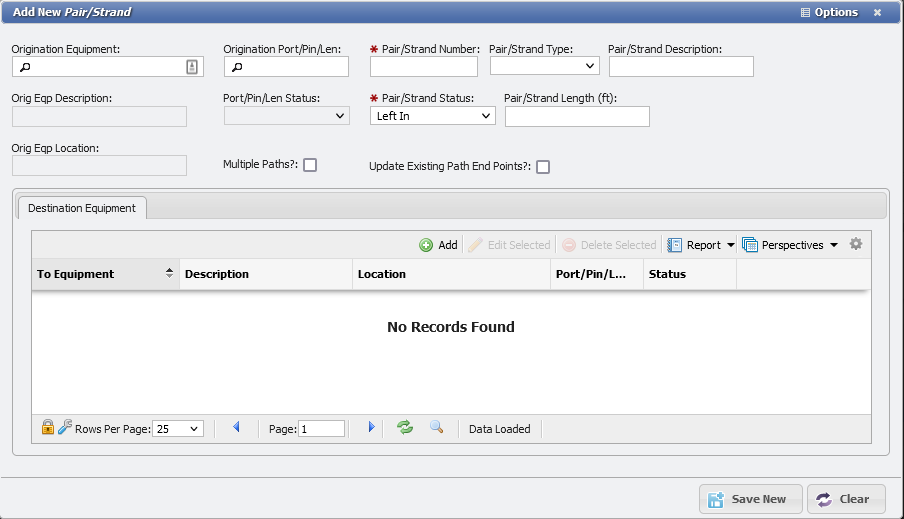
Add New Pair/Strand form example -
Edit the desired information, only the Pair/Strand number and the Pair/Strand Status are Required fields.
Edit Selected
-
Select the Pair/Strand to edit. This can be done by single-clicking the Pair/Strand and clicking the Unknown Attachment button or simply by double-clicking the item in question.
-
This will open the 'Manage Pair/Strand' form.
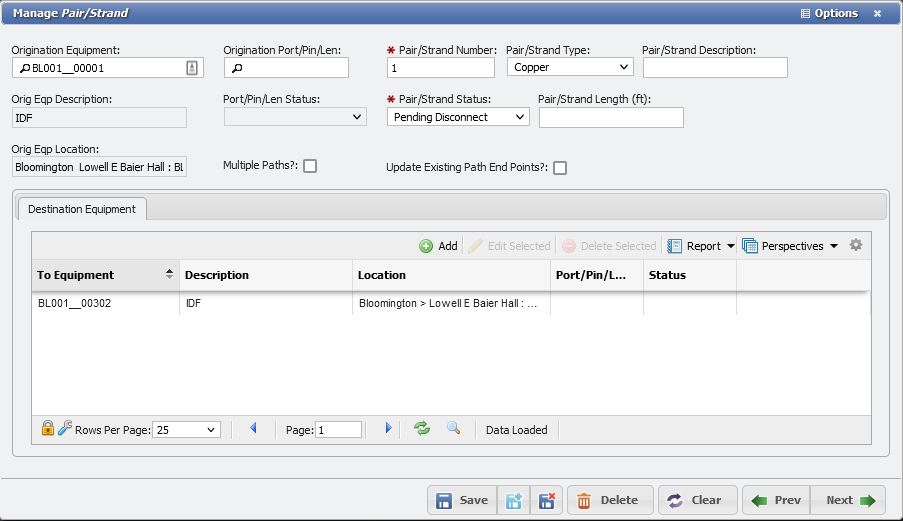
Edit Pair/Strand form example -
Edit the desired information, only the Pair/Strand number and the Pair/Strand Status are Required fields.
Update Existing Path End Points
Checking the 
-
Select the Pair/Strand that needs updating and double-click or use the
-
Select and open the Destination Equipment that needs updating. This opens the 'Manage Destination Equipment' form.
-
Select a different Destination Equipment.
-
Check the
-
Save and Close the form.
View Path
-
Select the Pair/Strand that a view of the Path is desired for.
-
Click the

-
The view will generate with the Service ID, and Location displayed in plain text.
-
A graphical representation of the path will display, and individual components can be clicked on here.

View Path example -
If a component is clicked on, PCR-360 will open the 'Manage' form for that component.
-
Close the tab, or click on the origination tab to return to the Cable: Pairs/Strands grid.
Edit Path
-
Select a Pair/Strand that needs its Path edited.
-
Select the Pair/Strand to edit. This can be done by single-clicking the Pair/Strand and clicking the
-
The 'Manage Path' form will open.
-
Edit the Path as desired.
-
Click the Unknown Attachment button to modify the Path.
Service Desk
If a Pair/Strand has a 'Service Desk Action' associated with it, the action can be viewed simply from this button.
-
Select the Pair/Strand that has a Service Desk action to view.

-
To view only Pairs/Strands with Actions Filter the Service Desk field with the 'Is Not Empty' type in the Filter Service Desk dialog.
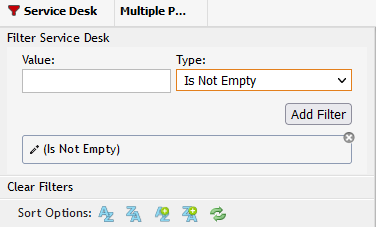
Filter by Is not Empty example -
Once the appropriate Service Desk item is selected, click the Unknown Attachment button.
-
This will open the 'Manage Service Desk Action' form. More information about managing these options can be found at Manage Service Desk Action.
-
Modify the Action, as appropriate.
Delete Selected
This will delete the Pairs/Strands from PCR-360.
-
Select the Pairs/Strands item to delete.
-
Click the
-
The item will now be removed.